
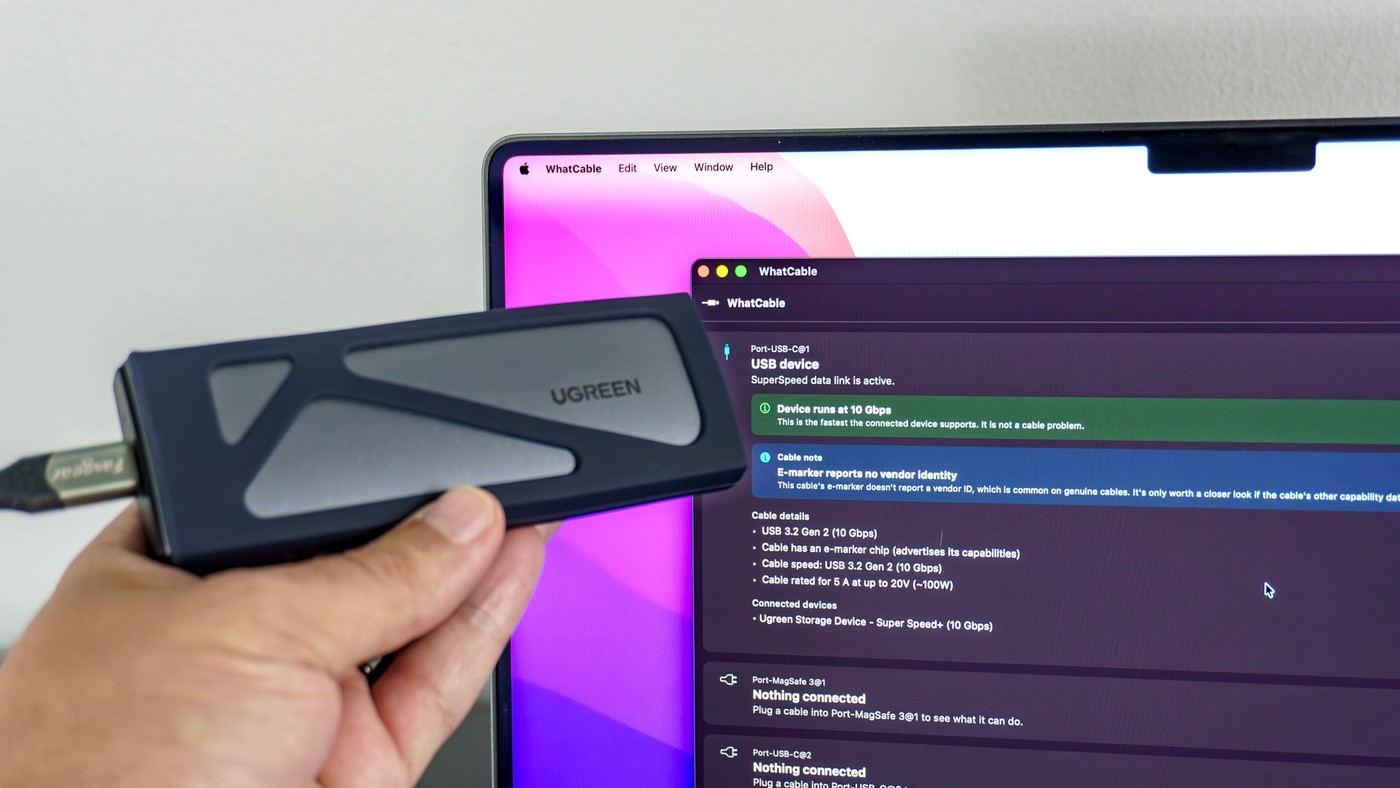
Check a USB-C Lead's Capabilities Instead of Guessing From Its Finish
Tom's Guide describes using the WhatCable Mac app to investigate USB-C cables whose capabilities are difficult to identify from their appearance. The writer points out that labels are inconsistent and that a braided jacket does not establish a cable's power or data specification.
The practical lesson is to distinguish a cable's construction from the information needed for a particular connection. Identify its reported capabilities before assigning it to charging or data transfer, rather than assuming similar-looking leads are interchangeable. The article reports the reviewer's own checks and purchase decision, so it should not be read as a certification of every cable the app may encounter.
Connect another device before interpreting the app display
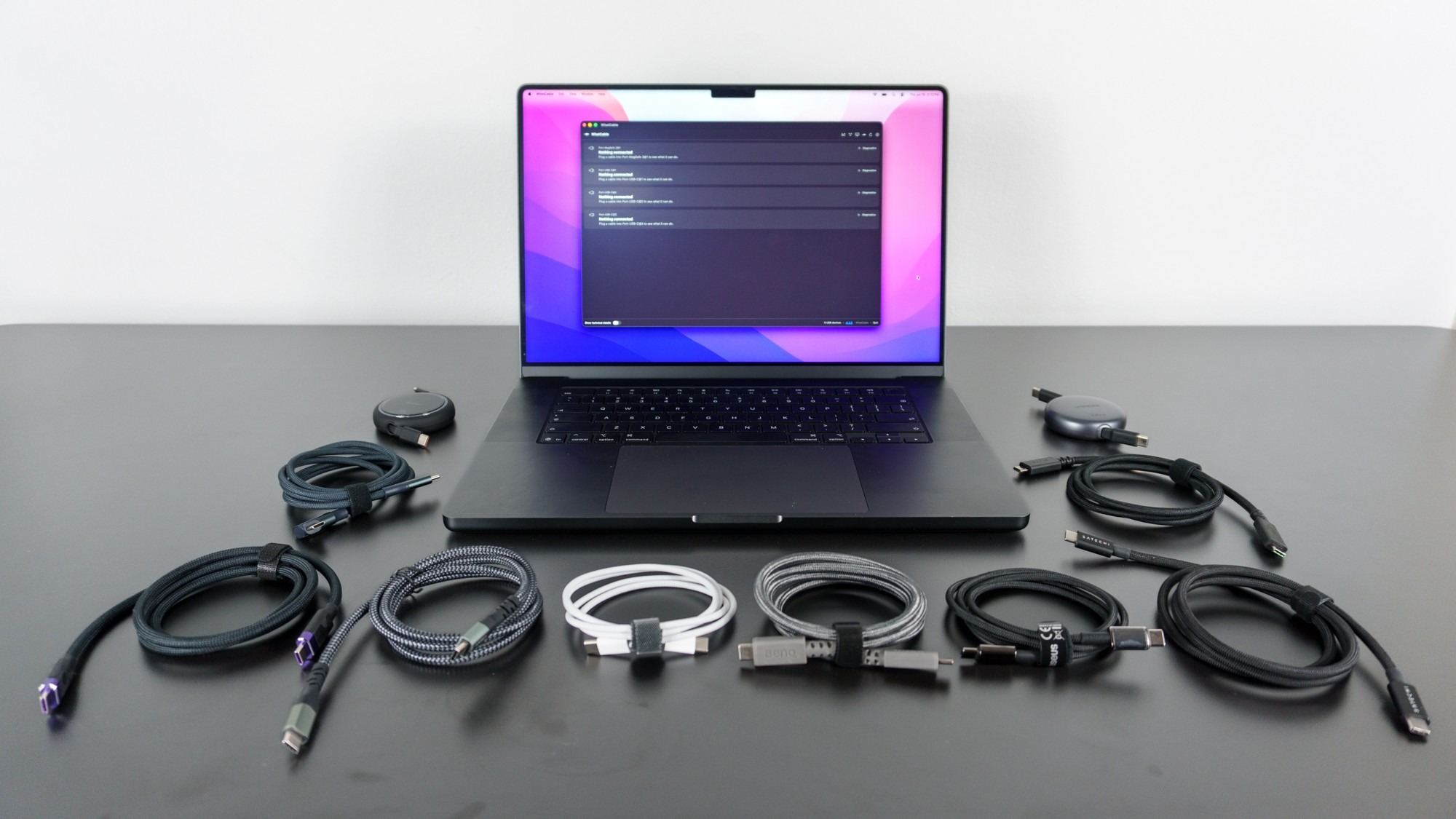
In the writer’s test, WhatCable displayed sections corresponding to the MacBook’s physical ports, but those sections remained blank until a device was connected at the other end of a cable. The accessory also needed permission to connect before the app could report details. That sequence matters when an apparently empty panel is interpreted as a failed cable. Connect the intended device and complete the relevant access prompt first, then read the information for the active port rather than drawing conclusions solely from the app’s initial screen.
Keep charging power separate from data capability
One example in the article was a retractable Ugreen cable marked for 100 W charging that the app identified as limited to USB 2.0 data. Another Apple braided cable was likewise identified as USB 2.0 despite being attached to a more capable tablet. These examples show why a high power rating or premium finish does not by itself establish fast data transfer. WhatCable’s technical-details view helped the reviewer distinguish connection information from the underlying Mac port’s capabilities. Treat those reported checks as diagnostic information for the tested setup, rather than independent certification of every possible cable feature.
Interpret the active connection rather than the cable's appearance
The article shows why a braided finish, a familiar brand, or a USB-C connector cannot settle a cable's data capability. One retractable cable supported substantial charging power while using USB 2.0 for data. Those facts can coexist because power and data are different parts of the specification. WhatCable presents information about the connected arrangement, giving the reviewer a clearer basis for assigning cables to jobs. The important practical distinction is between a cable that is perfectly useful for charging and one needed for a high-speed storage task. Testing helps identify that distinction without treating every slower cable as damaged or every premium-looking lead as suitable for demanding transfers.
Use an endpoint that can exercise the intended capability
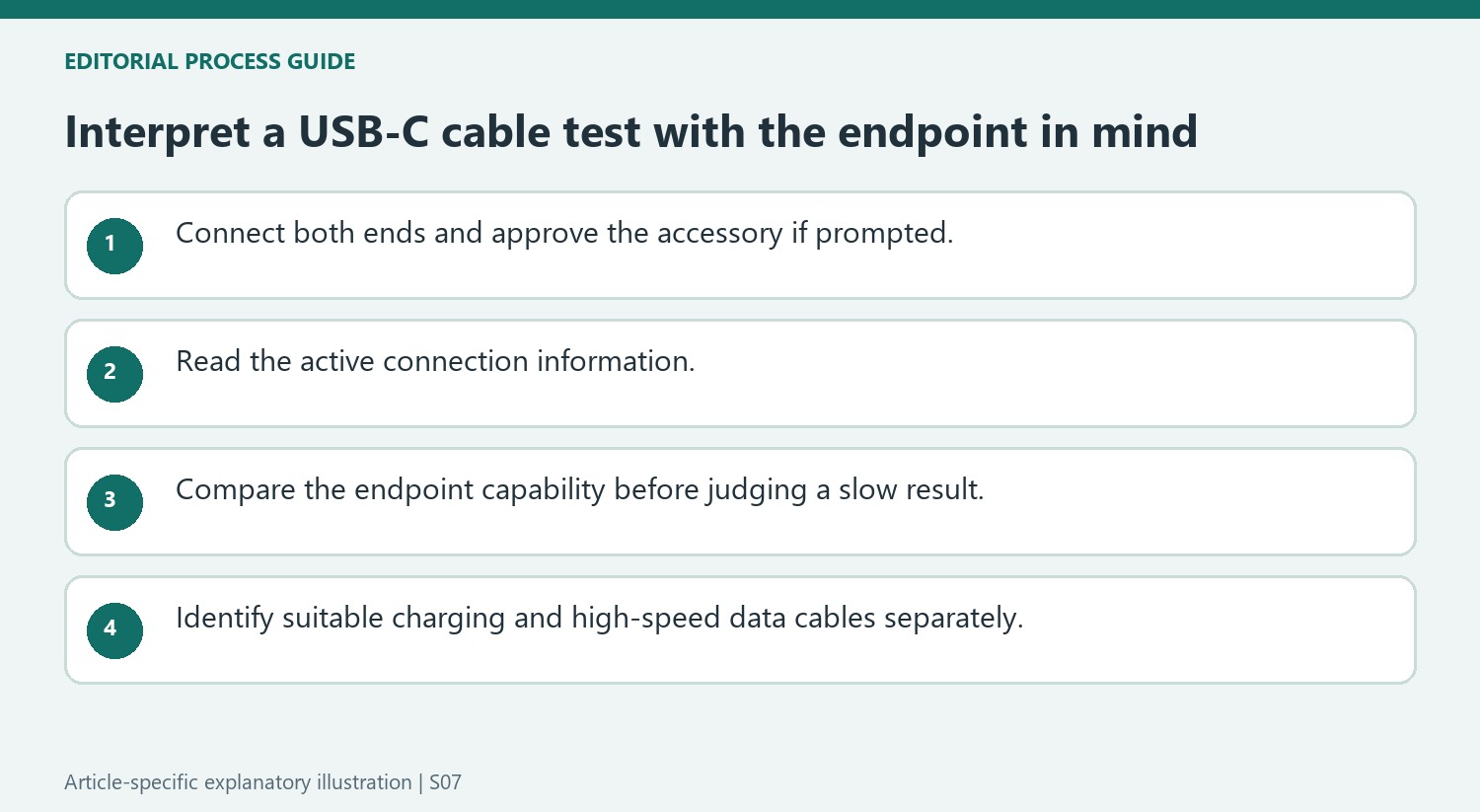
The reviewer's high-capability Thunderbolt cable appeared to operate at USB 2.0 speeds when connected to a controller. Changing the endpoint to a more capable tablet changed the result. That example is a useful reminder that a connection report reflects the combination of computer, cable, and device. A simple peripheral does not need the bandwidth of an external SSD, so it cannot necessarily demonstrate the cable's full potential. When investigating an unexpected result, confirm the endpoint's supported modes and use a suitable comparison device. Otherwise, a working high-speed cable may be wrongly rejected because the attached product only communicates through a more limited protocol.
Turn the findings into an understandable cable collection
The article's broader project is organizing a growing set of accessories, with the paid app version adding named cable records and further monitoring features. That can make it easier to associate a particular lead with an observed use rather than retesting an indistinguishable pile every time. The free version already provided useful connection details in the reviewer's Mac setup, but the actual display depends on the hardware and connected devices. Accessory approval was also required before the phone connection could be examined. Check the app's present requirements and available features before relying on a particular workflow. A small, clearly identified collection of cables assigned to appropriate jobs is more useful than judging them by texture alone.
References
- I found a free Mac app that solves the worst thing about USB-C cables. Tom's Guide; Anthony Spadafora.
Tom's Guide describes using the WhatCable Mac app to investigate USB-C cables whose capabilities are difficult to identify from their appearance. The writer points out that labels are inconsistent and that a braided jacket does not establish a cable's power or data specification.


Leave a Comment
Comments (0)