
Belkin's Wedge Dock Trades Access for a Tidier Layout
Consider which connections stay in place
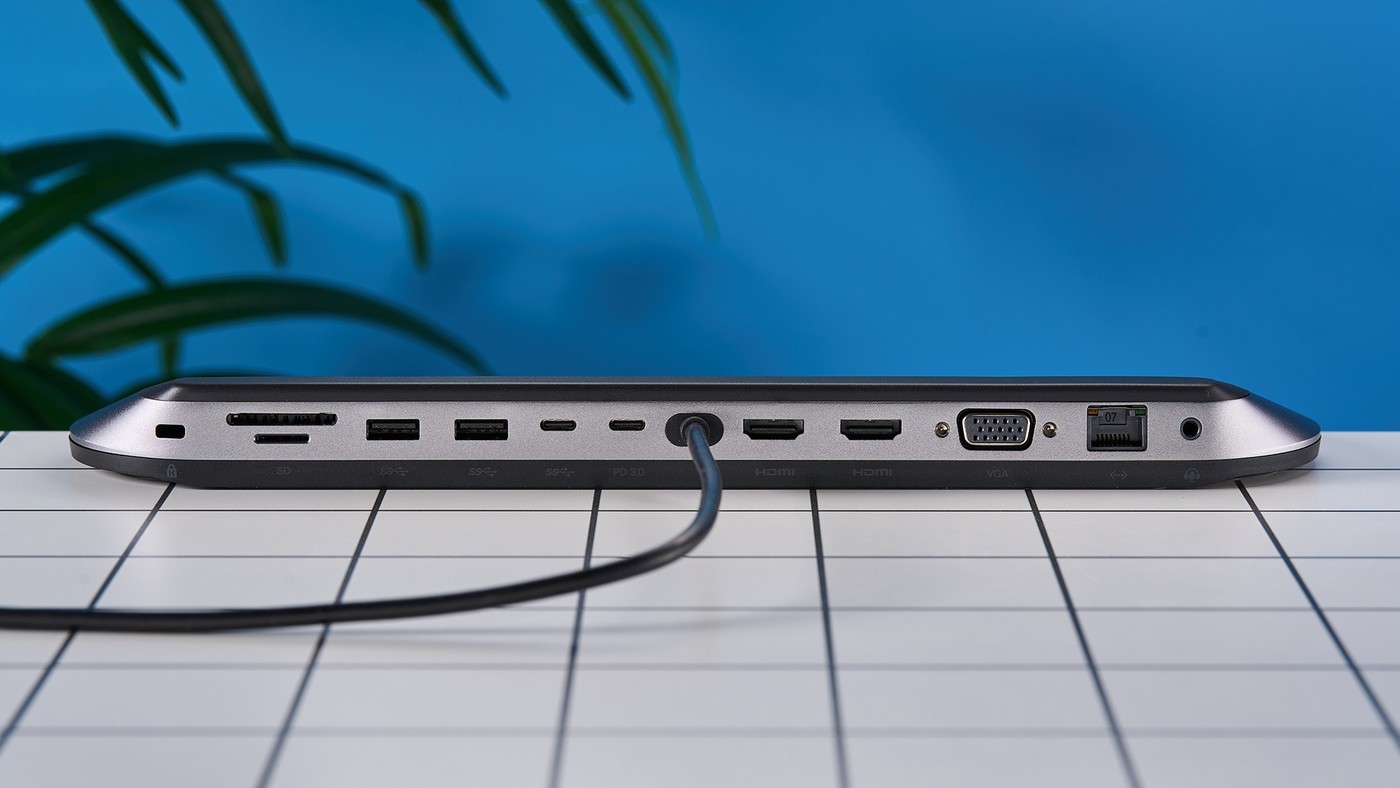
Tom's Guide describes the Belkin Connect 11-in-1 USB-C Pro as a wedge shaped dock that can also lift a laptop slightly. This position moves the ports behind the computer, which can tidy permanent connections but make frequently changed accessories less convenient to reach. The reviewer found the angle useful for typing while questioning its value as a full stand. Decide whether the dock will mainly hold a monitor, network cable and other fixed equipment or serve as a constantly accessed front connection point. The same physical layout can suit the first role and frustrate the second.
Read each display output separately
The review lists several display sockets, but their supported modes are unequal. It describes one higher capability HDMI path, another with a lower refresh limit and a VGA output for a lower resolution role. Do not interpret an overall monitor count as identical maximum resolution and refresh on every screen at once. The article also uses some inconsistent interface wording, making the current manufacturer's specification important before purchase. Confirm the host operating system's supported arrangement as well. A set of matching monitors does not remove differences in the dock's output paths or establish that every computer will extend them in the same way.
Assess the useful extras against the workload
Card slots, an audio connection, USB accessory ports and faster than gigabit Ethernet add practical variety for some desks. The source describes these as helpful during ordinary device and camera work. Check the power input arrangement and host charging specification separately, including which USB-C socket serves each role. The reviewer remains cautious about the Pro name for intensive specialist workflows and high refresh gaming. Treat that name as branding rather than a performance category. Compare the connections needed in daily use, their individual limits and the desk placement before deciding that a larger port count alone makes the dock the right fit.
Decide whether rear access serves the way the dock will be used
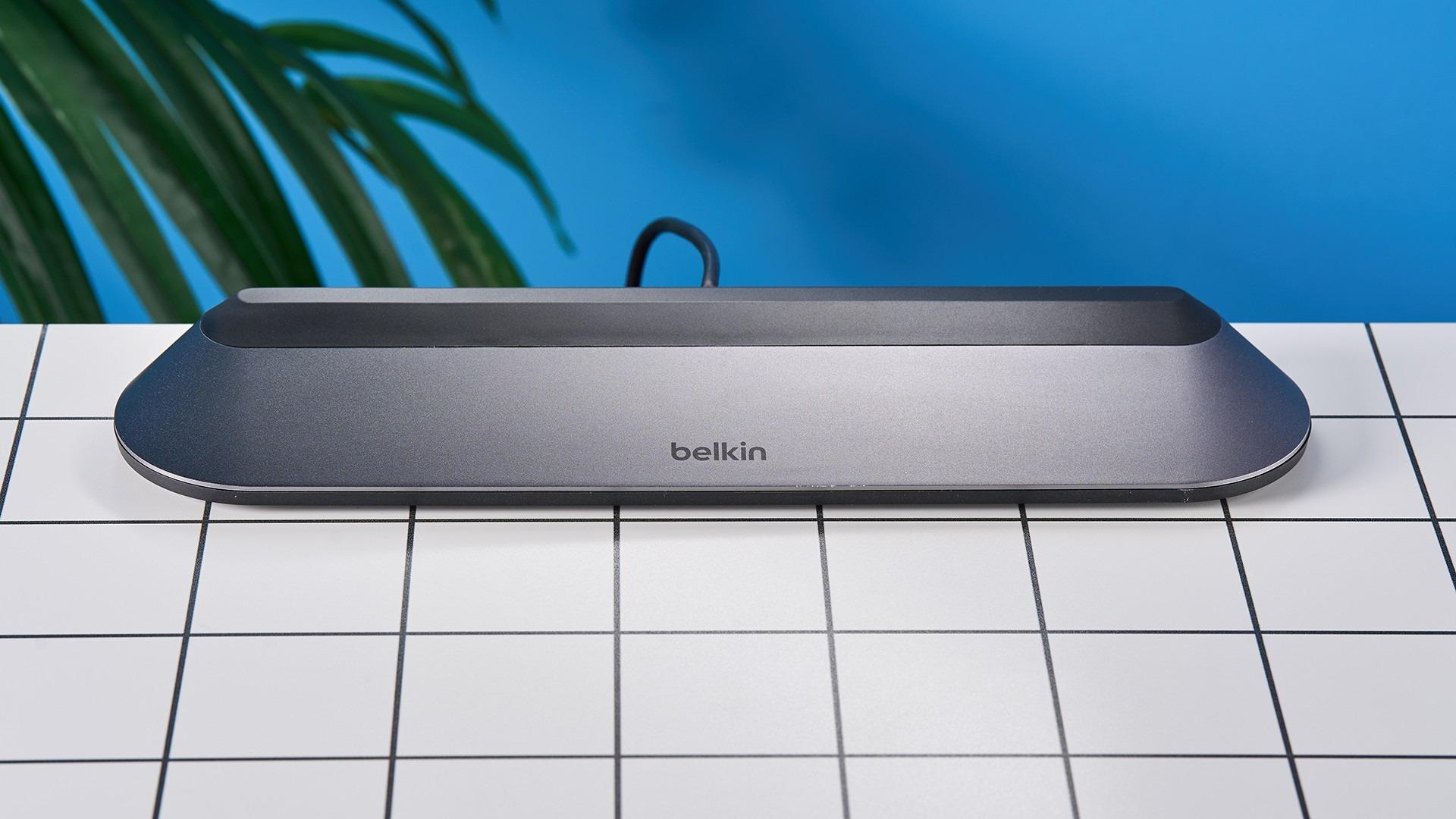
The wedge can raise a laptop slightly and move permanent cables out of sight, according to the reviewer. That arrangement can suit a monitor and network connection that rarely change. It can also make card and accessory swapping less convenient when the dock sits behind the computer. Decide which use dominates before treating the stand-like shape as an unconditional benefit.
Measure the desk and consider the typing angle rather than assuming this replaces a full adjustable stand. The review itself is cautious about that role. Its build and layout observations provide useful context, while the practical fit depends on the laptop and how often ports need to be reached. Keep access needs alongside screen and power requirements in the comparison.
Read unequal display paths and ambiguous terms carefully
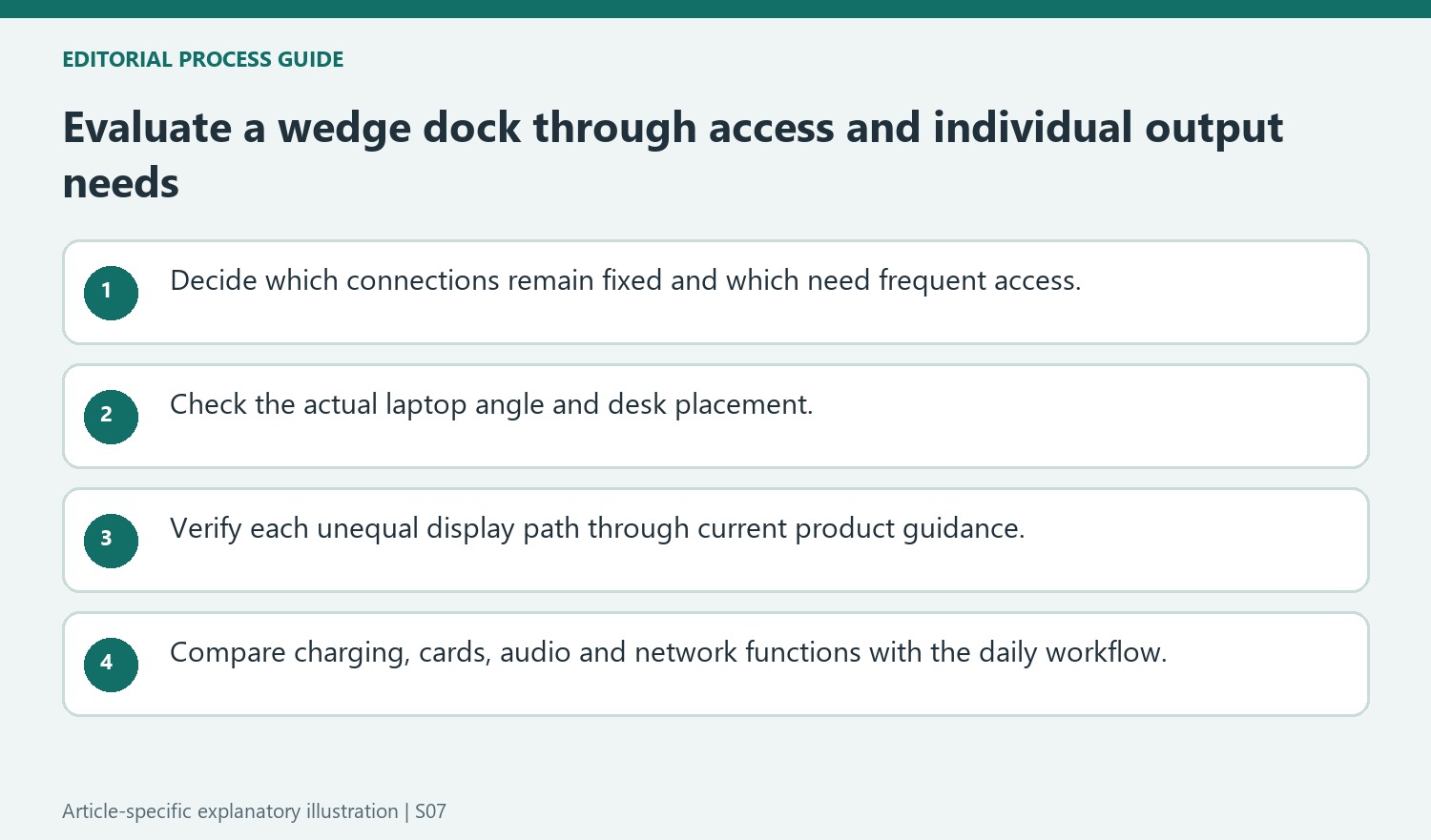
The source describes different maximum modes for the individual video outputs. Do not interpret the overall screen count as the same maximum on every panel or as proof of a supported extended arrangement on every operating system. Confirm the complete host and monitor configuration through current manufacturer documentation before buying matching screens for all sockets.
The review also contains inconsistent interface wording. Use its practical observations without reproducing those inconsistencies as technical certainty. Verify the actual data-port type, Ethernet rate, input-power arrangement and display specifications for the precise product. Branding such as Pro is not a standardized workload certification, and a larger port count does not establish support for every intensive production or high-refresh gaming task.
Compare daily utility with the complete connection plan
Card slots, audio and networking can remove useful separate adapters when their actual capabilities match the workflow. Check the required host charging allowance and the role of each USB-C socket independently. Then test the normal combination of screen, storage and accessory tasks after setup. Keep the working cable map and per-output modes available for later changes. This lets the product’s tidy layout and useful port variety be evaluated honestly, while preserving the individual limits that determine whether it serves a particular desk better than another model.
References
- Belkin Connect 11-in-1 USB-C Pro Dock review: Laptop power users, look no further. Tom's Guide; Peter Wolinski.
The Connect 11-in-1 Pro can sit beneath a laptop, but its rear connections and unequal display modes need consideration.


Leave a Comment
Comments (0)