
Connect external speakers to a laptop: Recover an audio output missing from Windows
Connect external speakers to a laptop
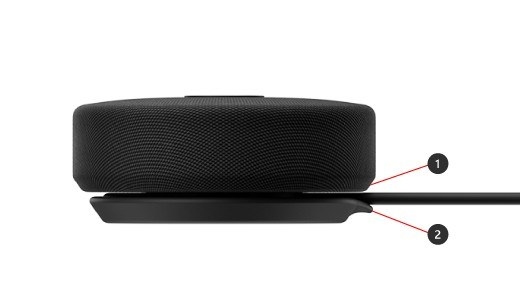
After connecting external speakers, select them as the playback output and confirm any required power. Check the speaker's own level as well as Windows and app volume. A recognized but quiet output and a device missing entirely from Sound settings need different troubleshooting steps.
Inspect detection in Device Manager
Microsoft explains that missing, disabled or incompatible drivers can make speakers and headphones disappear from Sound settings. In Device Manager, inspect Sound, video and game controllers, enable the device if that option is available, and use Show hidden devices or Scan for hardware changes when necessary.
Install a matching driver and retest
Obtain an audio driver for the exact PC or sound device and Windows version from the manufacturer's support site. After installation, restart and check whether the output returns. The Windows audio troubleshooter is another documented option. These steps address a device that is not detected; once it reappears, select it as the intended playback output and check its volume before concluding that another hardware fault remains.
Microsoft explains that missing, disabled or incompatible drivers can make speakers and headphones disappear from Sound settings. After connecting external speakers, select them as the playback output and confirm any required power.


Leave a Comment
Comments (0)