
Set up a USB headset for calls: Restore sound to the intended speakers or headset
Set up a USB headset for calls
USB headsets add both playback and recording functions. Select the intended speaker and microphone in Windows and in the meeting application, then test each direction. Hardware mute, app volume and browser limitations can affect the experience even when the USB device itself is connected correctly.
Check the selected output
Microsoft's no-sound guide begins by selecting the appropriate playback device from the taskbar sound controls. A monitor, headset and built-in speakers can all appear as outputs, so audio may be sent to a device that is connected but not being used. Choose the intended speakers before changing more complex settings.
Inspect power cables and volume
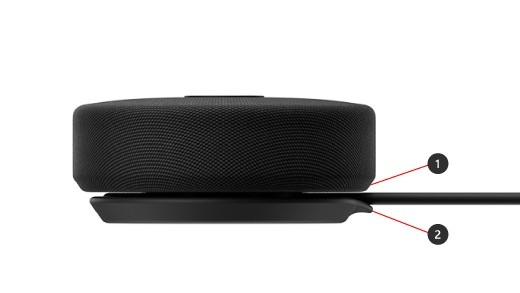
Check the accessory's power, the cable connection, the correct audio socket and any hardware mute or volume control. Application volume can also differ from the system level. Microsoft's Get Help audio troubleshooter provides another step when these checks do not restore playback. Testing one output at a time helps distinguish an incorrect Windows selection from an unpowered speaker or a damaged connection.
Microsoft's no-sound guide begins by selecting the appropriate playback device from the taskbar sound controls. USB headsets add both playback and recording functions.


Leave a Comment
Comments (0)