
Select the right audio input on a laptop: Compare a Surface microphone array with an external input
Select the right audio input on a laptop
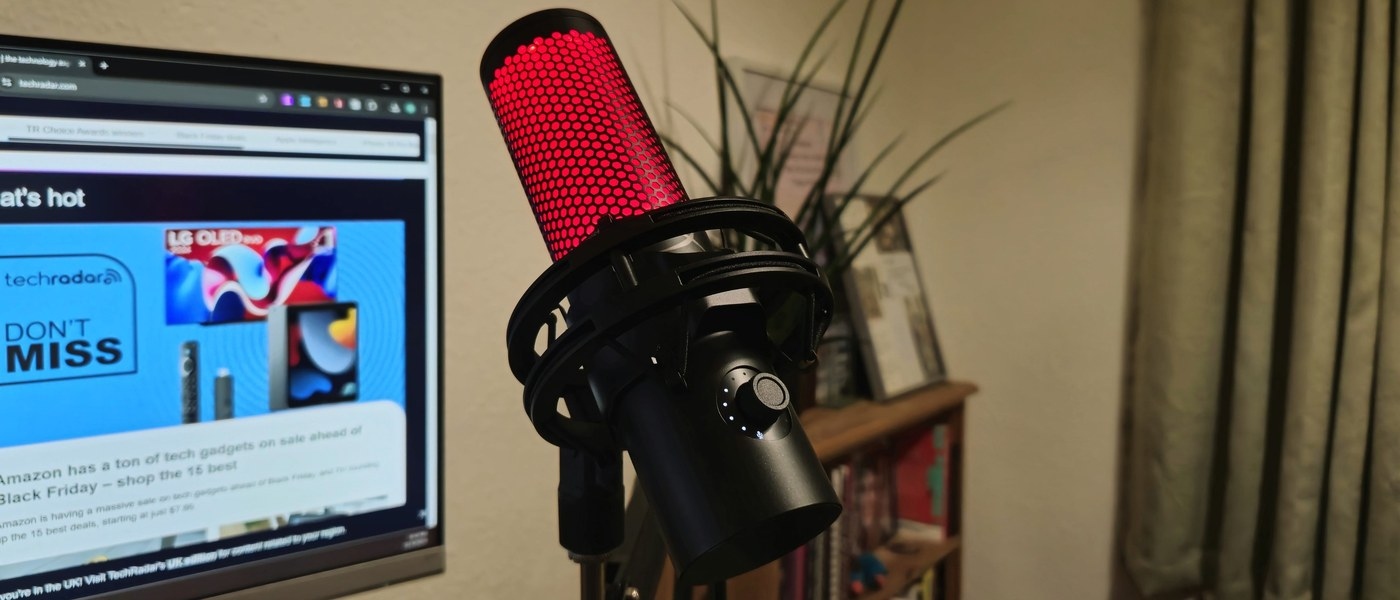
A laptop may have an internal microphone array, a webcam microphone and a connected headset at the same time. Choose the intended input and make a test recording. Output selection is separate, so hearing audio through an accessory does not prove that the computer is recording through its microphone.
Identify the built-in recording device
Microsoft's Studio Mics guide identifies the built-in Surface input as Microphone Array in Settings, System, Sound. That name matters when a USB microphone or headset is attached alongside the internal microphones. Selecting the wrong input can make a working external accessory seem ineffective because the computer is still recording from the laptop.
Use the controls for the supported model
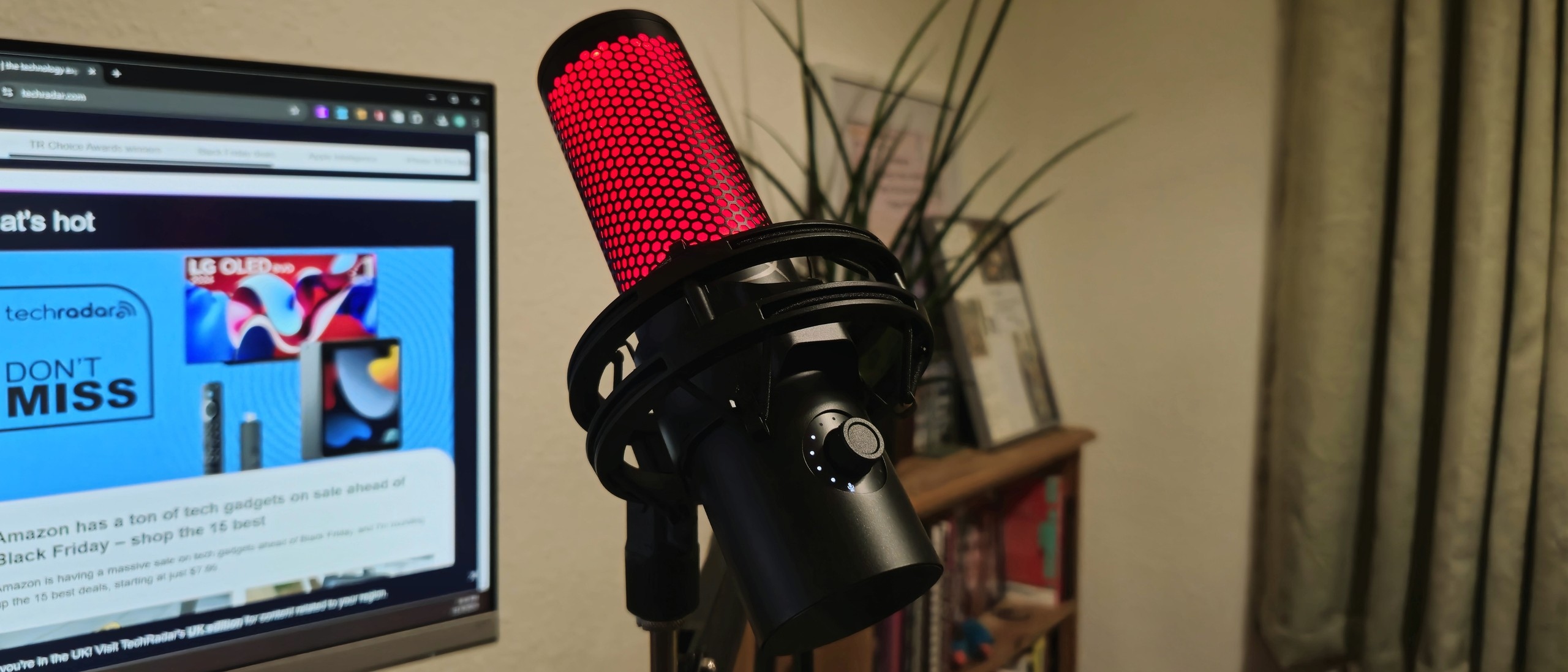
The guide describes volume, effects and default-format adjustments through the appropriate audio software, including Dolby Access for supported configurations. Older Windows instructions reference a different control application, so do not assume every Surface exposes identical effects. Start by selecting the desired input and checking its level, then use only the controls documented for the device and Windows version in use.
Microsoft's Studio Mics guide identifies the built-in Surface input as Microphone Array in Settings, System, Sound. A laptop may have an internal microphone array, a webcam microphone and a connected headset at the same time.


Leave a Comment
Comments (0)