
Set up a USB headset for calls: Trace a general Windows audio problem
Set up a USB headset for calls
USB headsets add both playback and recording functions. Select the intended speaker and microphone in Windows and in the meeting application, then test each direction. Hardware mute, app volume and browser limitations can affect the experience even when the USB device itself is connected correctly.
Begin with output and physical checks
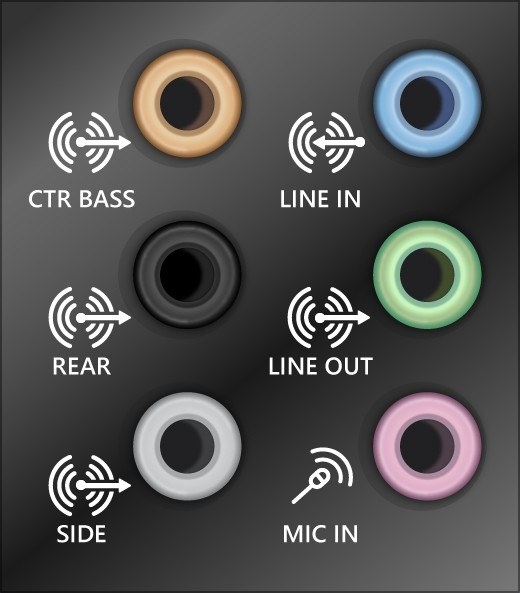
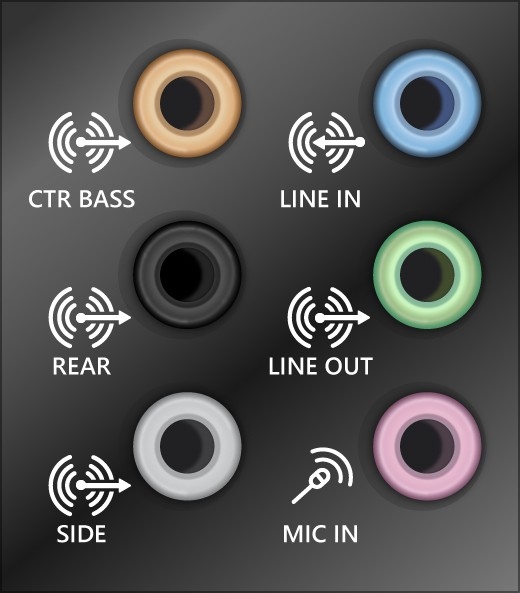
Microsoft's broad audio troubleshooting guide starts with the selected speaker device, secure cables and the appropriate jack. Systems with several audio outputs can route sound somewhere unexpected, particularly after connecting a monitor or USB headset. Hardware volume and mute controls should be checked alongside the Windows sound level.
Move to software after basic tests
The guide also covers the automated audio troubleshooter and driver-related checks. A change following an update may require different investigation from a loose plug or a muted application. Keep track of which playback device is being tested, and try a known working accessory where possible. This gives driver changes a clear purpose instead of using them as the first response to every silent speaker.
Microsoft's broad audio troubleshooting guide starts with the selected speaker device, secure cables and the appropriate jack. USB headsets add both playback and recording functions.


Leave a Comment
Comments (0)