
Select the right audio input on a laptop: Switch Surface audio accessories deliberately
Select the right audio input on a laptop
A laptop may have an internal microphone array, a webcam microphone and a connected headset at the same time. Choose the intended input and make a test recording. Output selection is separate, so hearing audio through an accessory does not prove that the computer is recording through its microphone.
Choose an output after connecting equipment
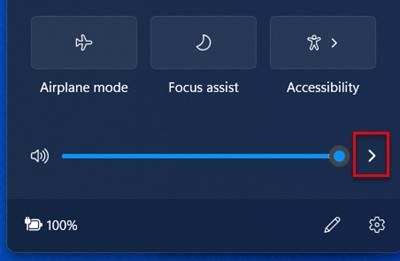
Microsoft's Surface audio guide supports USB and Bluetooth accessories alongside the built-in speakers and microphones. Use the taskbar speaker control to select the desired playback device. This is especially useful after attaching a dock, headset or external speaker, when the newly available output may not be the one Windows is currently using.
Check independent volume and microphone controls
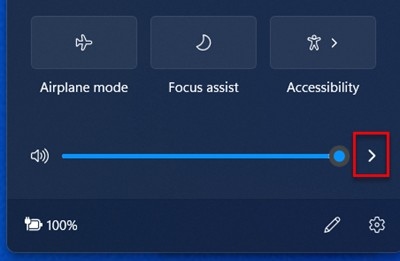
Surface volume buttons and the desktop control interact, but an app or accessory can maintain its own separate level. The guide also directs users to recording-device settings for microphone adjustments. Test both directions when setting up a headset: successful playback does not establish which microphone is active. Check hardware controls, app preferences and system selection together before judging audio quality or connection reliability.
Microsoft's Surface audio guide supports USB and Bluetooth accessories alongside the built-in speakers and microphones. A laptop may have an internal microphone array, a webcam microphone and a connected headset at the same time.


Leave a Comment
Comments (0)