
Set up a USB headset for calls: Choose the USB headset inside Teams
Set up a USB headset for calls
USB headsets add both playback and recording functions. Select the intended speaker and microphone in Windows and in the meeting application, then test each direction. Hardware mute, app volume and browser limitations can affect the experience even when the USB device itself is connected correctly.
Connect and select both audio directions
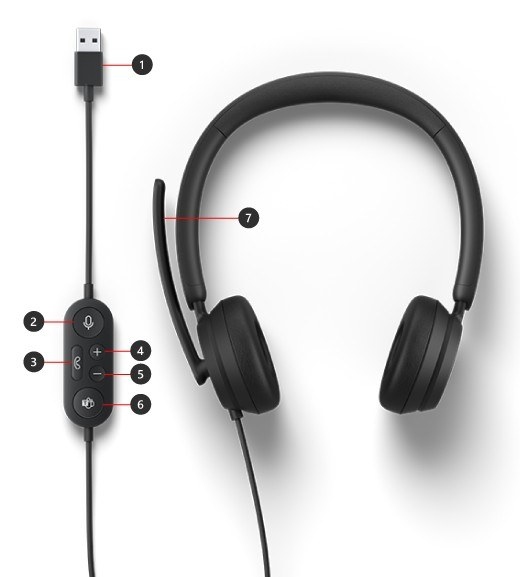
Microsoft Modern USB Headset connects through a USB port on a supported Windows PC. In the Teams desktop application, open Settings, Devices and select the headset under Audio devices. Check that both Speaker and Microphone use the headset, since hearing a call through it does not prove that the headset microphone is also selected.
Know which controls depend on the app
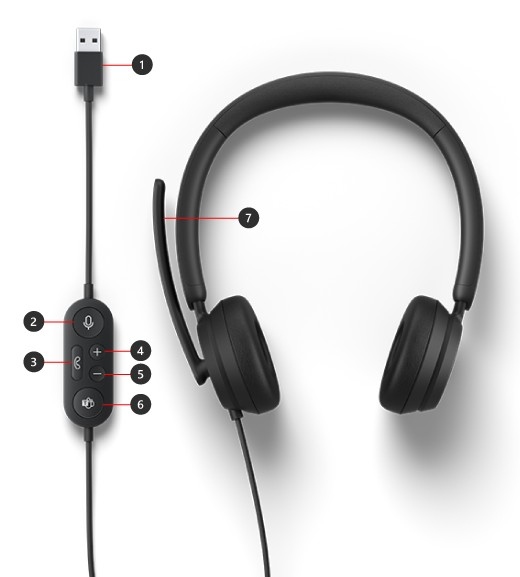
The headset provides volume, mute, call and Teams buttons. Microsoft's guide notes that several call-control actions are unavailable when using Teams through a web browser. This distinction prevents a working USB audio connection from being mistaken for a hardware fault merely because an inline button behaves differently in the browser. Test recording and playback separately before joining a meeting.
Microsoft Modern USB Headset connects through a USB port on a supported Windows PC. USB headsets add both playback and recording functions.


Leave a Comment
Comments (0)