
Connect external speakers to a laptop: Fix external speakers that play too quietly
Connect external speakers to a laptop
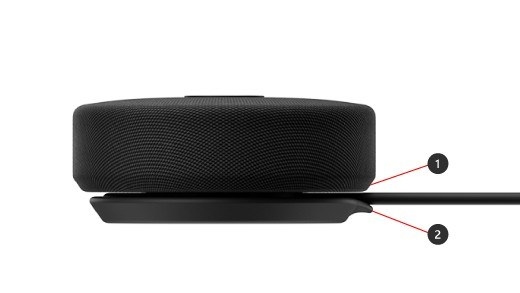
After connecting external speakers, select them as the playback output and confirm any required power. Check the speaker's own level as well as Windows and app volume. A recognized but quiet output and a device missing entirely from Sound settings need different troubleshooting steps.
Check levels in more than one place
Microsoft recommends reviewing the Windows Volume mixer when an application sounds unusually quiet or muted. Check the system and application levels rather than assuming the speaker's connection is bad. A separate volume control on powered speakers can also affect what is heard, so adjust the accessory and computer deliberately during a short playback test.
Test enhancements and supported formats
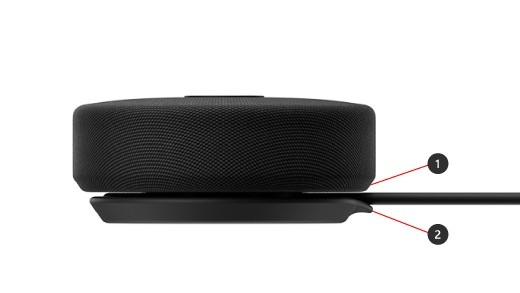
The guide suggests turning audio enhancements off to see whether they are reducing or distorting output. It also describes trying a different supported default format and checking the audio driver. These are follow-up tests for a recognized output that produces inadequate volume; a speaker missing entirely from Sound settings first needs detection, power and connection checks rather than simply a higher volume setting.
Microsoft recommends reviewing the Windows Volume mixer when an application sounds unusually quiet or muted. After connecting external speakers, select them as the playback output and confirm any required power.


Leave a Comment
Comments (0)