
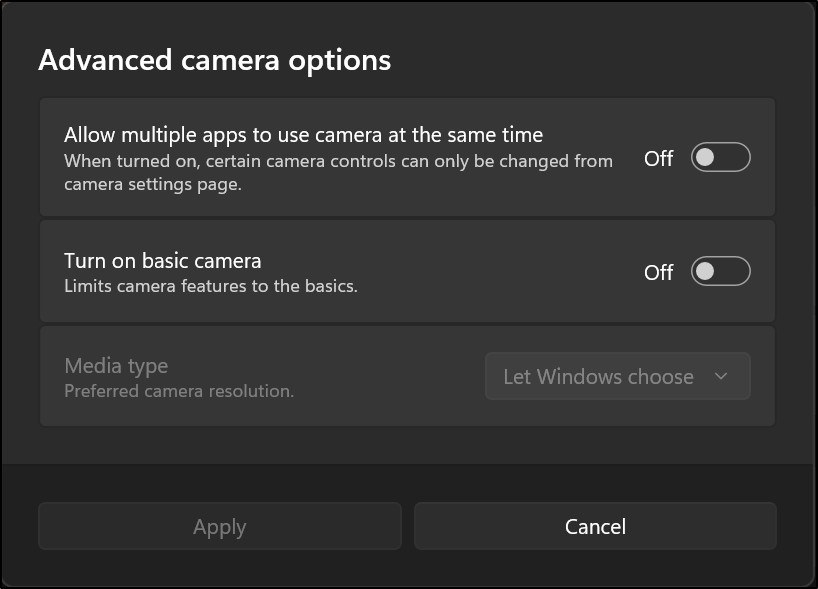
Find a webcam that Windows cannot detect: Troubleshoot a Surface camera with model awareness
Find a webcam that Windows cannot detect
Check the webcam cable or hardware switch, then review Windows detection and privacy settings. An application without permission can look like a missing device even when Windows sees the camera. Test with the Camera app and follow model-specific driver instructions only after simpler checks have been completed.
Check privacy and Surface updates
Microsoft's Surface-specific guide recommends the Camera troubleshooter, followed by confirmation that camera access and app access are enabled under Privacy and security. The Surface app can report update status and direct users to Windows Update. These checks address common reasons a built-in camera stops appearing or works in one app but not another.
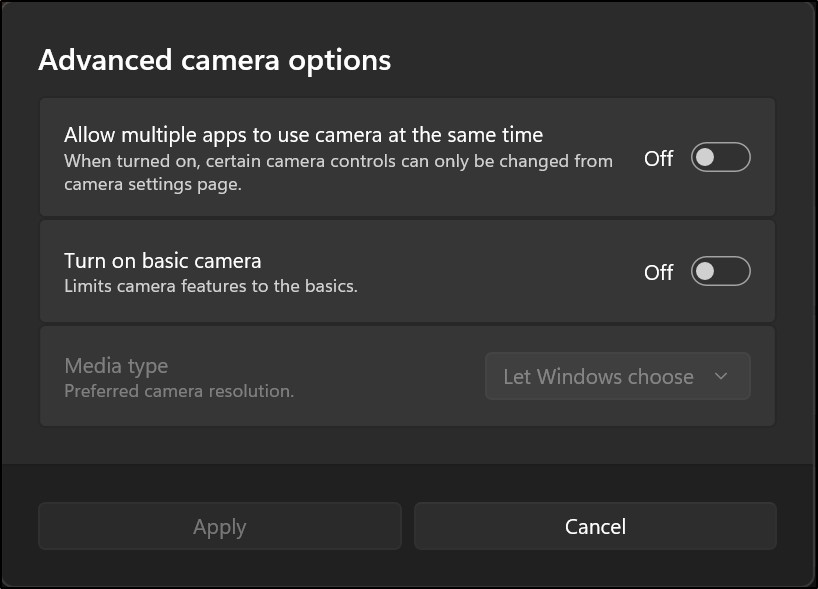
Keep the driver exception visible
The guide includes a warning against its driver-uninstall procedure on Surface Pro X, where restoring those drivers requires a full system reset. That limitation makes exact model identification essential before following repair instructions. Use the supported troubleshooting path for the device rather than applying a generic driver-removal recipe to every Surface, especially when a permission or app configuration issue has not yet been ruled out.
Microsoft's Surface-specific guide recommends the Camera troubleshooter, followed by confirmation that camera access and app access are enabled under Privacy and security. Check the webcam cable or hardware switch, then review Windows detection and privacy settings.


Leave a Comment
Comments (0)