
Find a webcam that Windows cannot detect: Check why Windows cannot use a webcam
Find a webcam that Windows cannot detect
Check the webcam cable or hardware switch, then review Windows detection and privacy settings. An application without permission can look like a missing device even when Windows sees the camera. Test with the Camera app and follow model-specific driver instructions only after simpler checks have been completed.
Start with the camera itself
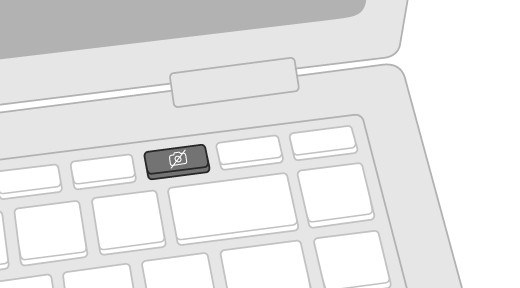
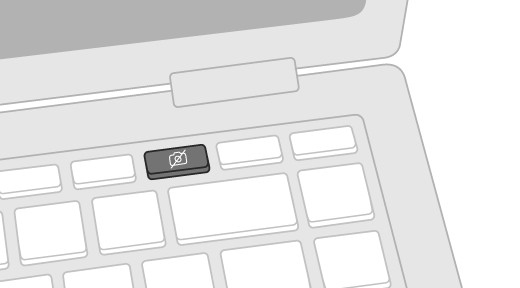
Microsoft recommends checking an external camera's USB cable and trying the device on another computer. Laptops may also have a hardware camera switch, a function-key control or a shutter that needs to be opened. A closed or disabled camera can resemble a software failure even though the cable and Windows application are functioning.
Then inspect access and updates
The Windows 11 Camera troubleshooter in Get Help can diagnose common issues. Privacy restrictions, antivirus software, missing drivers and the chosen application's settings are other possible causes in Microsoft's guide. Test with the Camera app to help separate a system-wide problem from one application's configuration, and follow the relevant driver or permission steps after the simpler physical checks.
Microsoft recommends checking an external camera's USB cable and trying the device on another computer. Check the webcam cable or hardware switch, then review Windows detection and privacy settings.


Leave a Comment
Comments (0)