
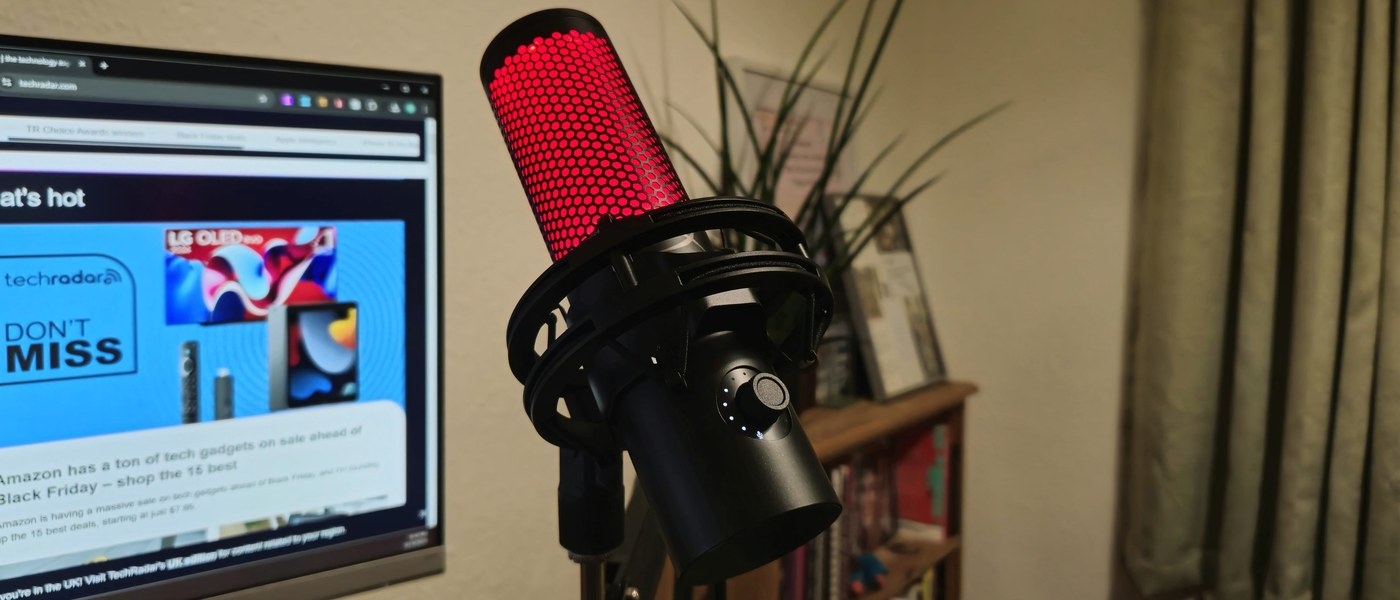
Connect and test a USB microphone: Connect a USB microphone with a clear recording pattern
Connect and test a USB microphone
After attaching a USB microphone, choose it under Windows input settings and record a short sample. Check mute, input level and app permission before assuming a connection fault. A USB device can appear correctly while a meeting app still records from the laptop's internal microphone instead.
A plug-in example from the QuadCast 2
TechRadar's HyperX QuadCast 2 review describes a USB microphone aimed at straightforward recording. Its cable includes an adapter for USB-A or USB-C computer connections, and the supplied stand incorporates a shock mount. The reviewer praised the simple setup while noting that the companion app offers fewer audio adjustments than some alternatives.
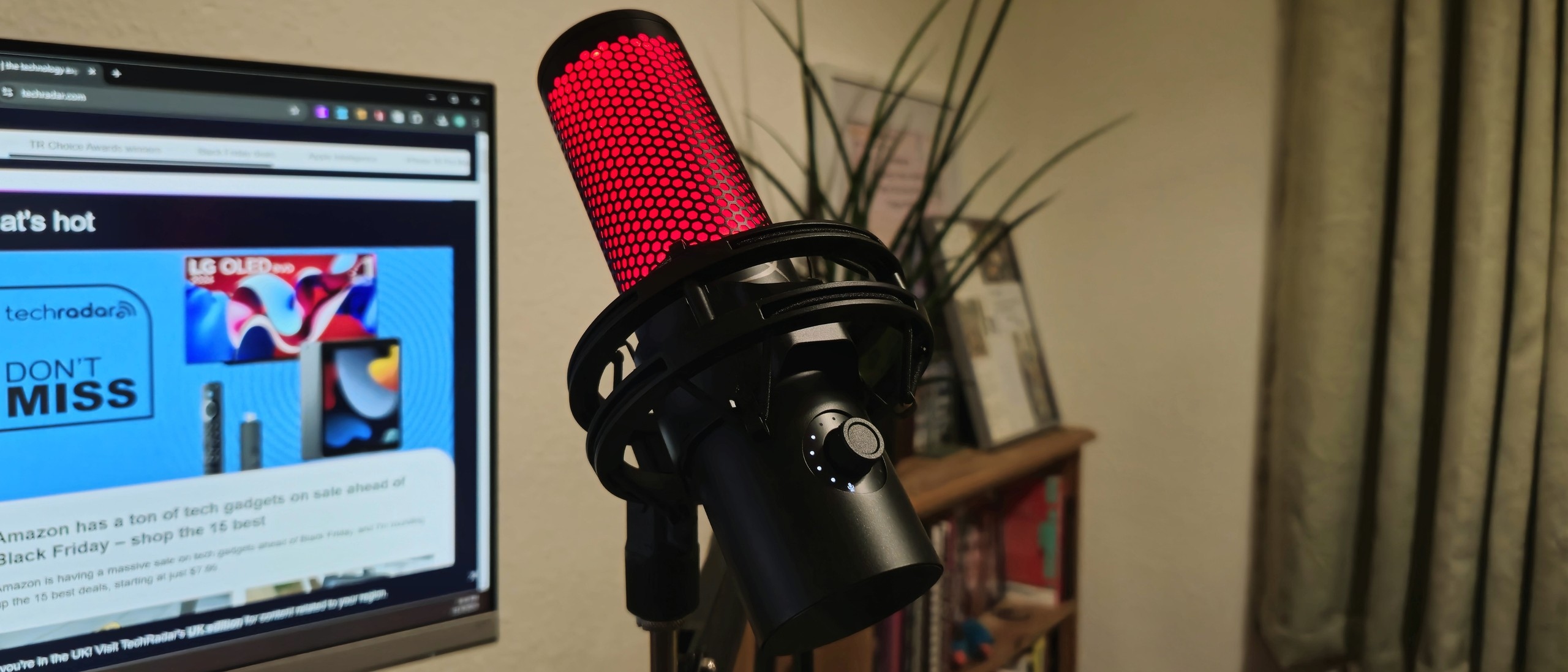
Choose a pattern for the recording task
The review describes cardioid, stereo, omnidirectional and bidirectional patterns, with lighting that indicates the chosen mode and microphone status. Those options affect what is captured around the microphone; they are separate from choosing the microphone in Windows or a recording app. Check both the active input and the selected pattern before judging the result of a test recording.
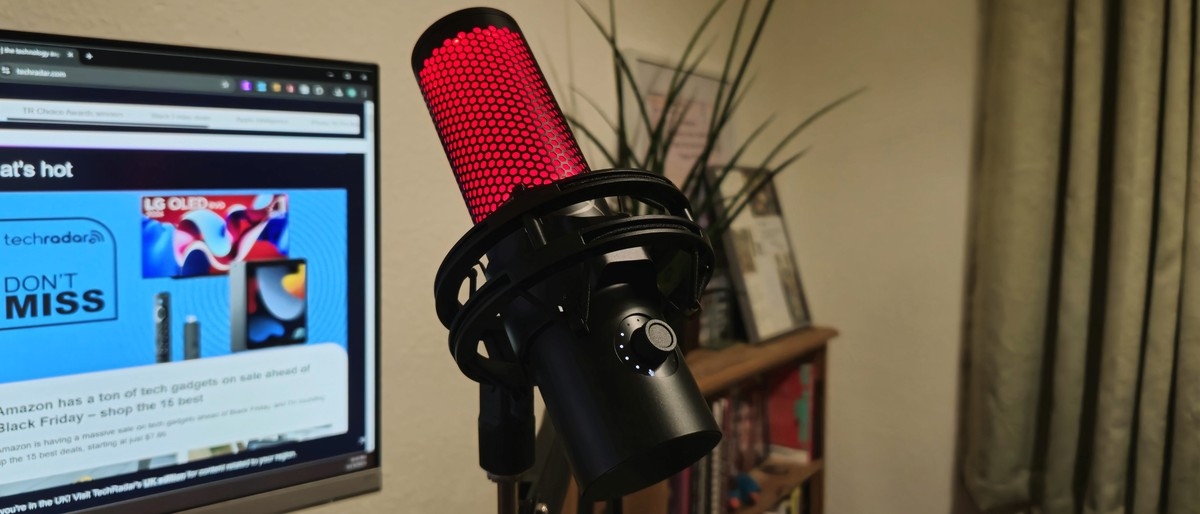
TechRadar's HyperX QuadCast 2 review describes a USB microphone aimed at straightforward recording. After attaching a USB microphone, choose it under Windows input settings and record a short sample.


Leave a Comment
Comments (0)