
Connect and test a USB microphone: Set up a USB-C speakerphone for calls
Connect and test a USB microphone
After attaching a USB microphone, choose it under Windows input settings and record a short sample. Check mute, input level and app permission before assuming a connection fault. A USB device can appear correctly while a meeting app still records from the laptop's internal microphone instead.
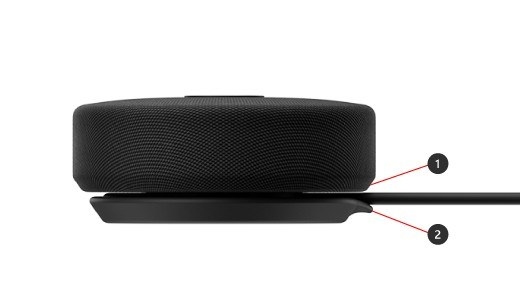
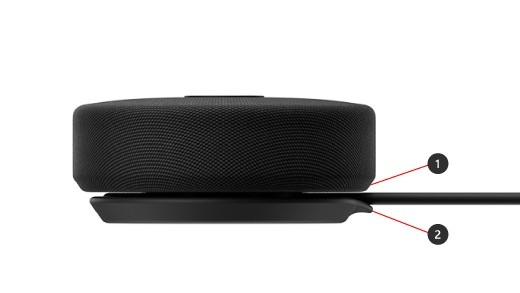
Connect the integrated USB-C cable
Microsoft Modern USB-C Speaker combines a speaker and microphone for a supported Windows PC. Its guide explains how to unwind the cable stored underneath and connect it to the computer. The accessory can play music as well as provide meeting audio, so it adds both a recording device and a playback device.
Select it in the meeting application
In the Teams desktop application's Devices settings, choose Modern USB-C Speaker and confirm that it is selected for both Speaker and Microphone. The hardware offers mute, volume, call and Teams controls. Test the selected microphone as well as playback before a call, because sound from the speaker alone does not establish that Teams is using the speakerphone's integrated recording input.
Microsoft Modern USB-C Speaker combines a speaker and microphone for a supported Windows PC. After attaching a USB microphone, choose it under Windows input settings and record a short sample.


Leave a Comment
Comments (0)