
Connect and test a USB microphone: Resolve a silent microphone before a call
Connect and test a USB microphone
After attaching a USB microphone, choose it under Windows input settings and record a short sample. Check mute, input level and app permission before assuming a connection fault. A USB device can appear correctly while a meeting app still records from the laptop's internal microphone instead.
Check permission and hardware mute
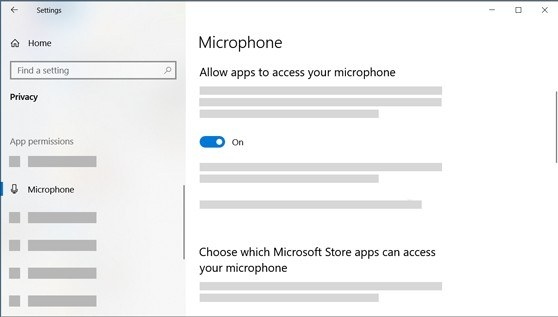
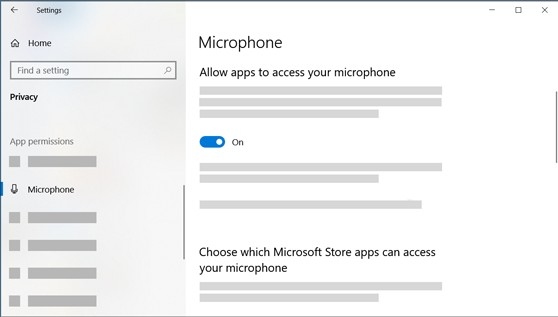
Microsoft's microphone troubleshooting explains that Windows privacy settings can block recording even when the device is connected. Enable microphone access and the appropriate app permissions, including the separate desktop-app control where needed. If a headset has a mute button, check that it is not active before changing drivers or buying another cable.
Select and test the recording device
Under System, Sound, choose the intended device for speaking or recording. Use the microphone test to record a sample and hear the result. A webcam with an integrated microphone may also require the relevant camera permissions. These checks separate connection failure, input selection and software access, which can produce similar symptoms in a meeting application but need different fixes.
Microsoft's microphone troubleshooting explains that Windows privacy settings can block recording even when the device is connected. After attaching a USB microphone, choose it under Windows input settings and record a short sample.


Leave a Comment
Comments (0)