
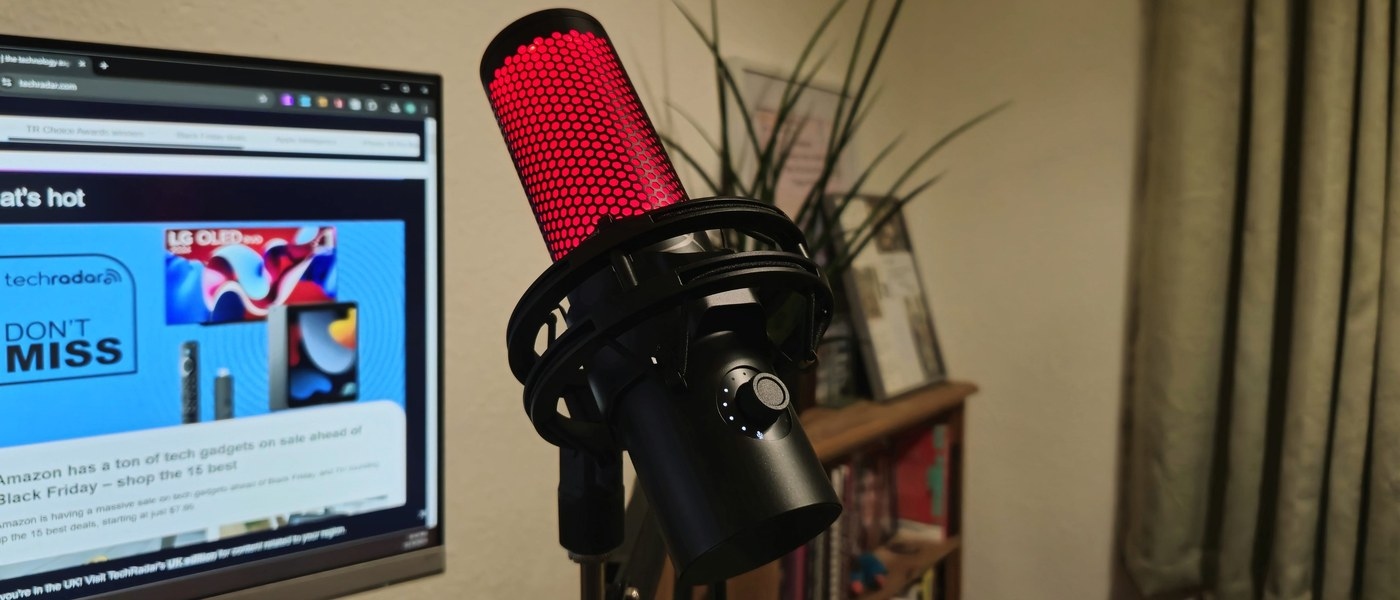
Connect and test a USB microphone: Select and test the intended microphone
Connect and test a USB microphone
After attaching a USB microphone, choose it under Windows input settings and record a short sample. Check mute, input level and app permission before assuming a connection fault. A USB device can appear correctly while a meeting app still records from the laptop's internal microphone instead.
Find the input rather than the speaker
Microsoft's setup guide directs users to Settings, System, Sound after connecting a microphone. The Input section lists the available recording devices. Select the microphone you intend to use; a laptop can have an internal array as well as a USB microphone, headset microphone or camera microphone, so the first visible device may not be the desired one.
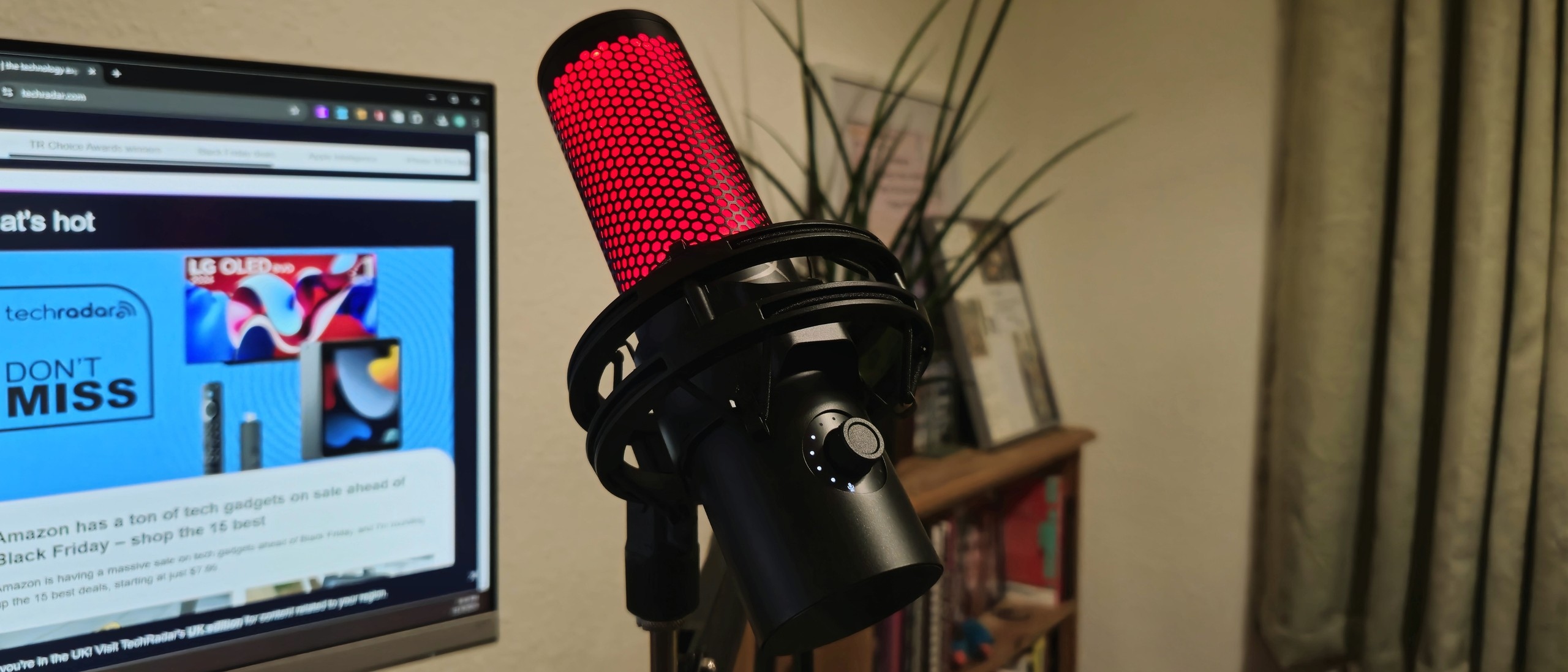
Record a short sample
Open the selected microphone's properties and start the microphone test. Speak at the normal distance, stop the test and play the recording. Adjust Input volume if the level is unsuitable. This checks the actual recording path more effectively than looking only for a power light, and helps distinguish a working connection from the wrong input being selected.
Microsoft's setup guide directs users to Settings, System, Sound after connecting a microphone. After attaching a USB microphone, choose it under Windows input settings and record a short sample.


Leave a Comment
Comments (0)