
Choose an External Microphone Separately from the Webcam
Using a Logitech webcam does not require recording through its built-in microphone. Logitech's guidance explains selecting a separate microphone as the operating system's default recording device, allowing the camera to continue handling video while the external device supplies sound.
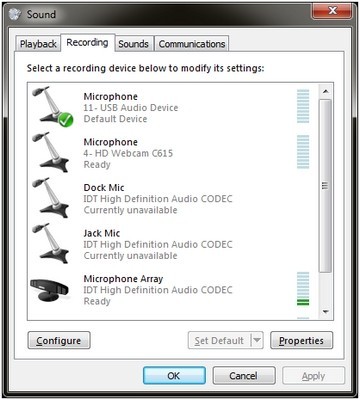
In the cited Windows 7 and Vista procedure, open Sound in Control Panel, select the Recording tab, choose the external microphone and set it as default. The older Windows XP route uses Sound Recording on the Audio tab. These are input selections rather than changes to speaker playback.
Keep the historical Windows paths attached to their versions
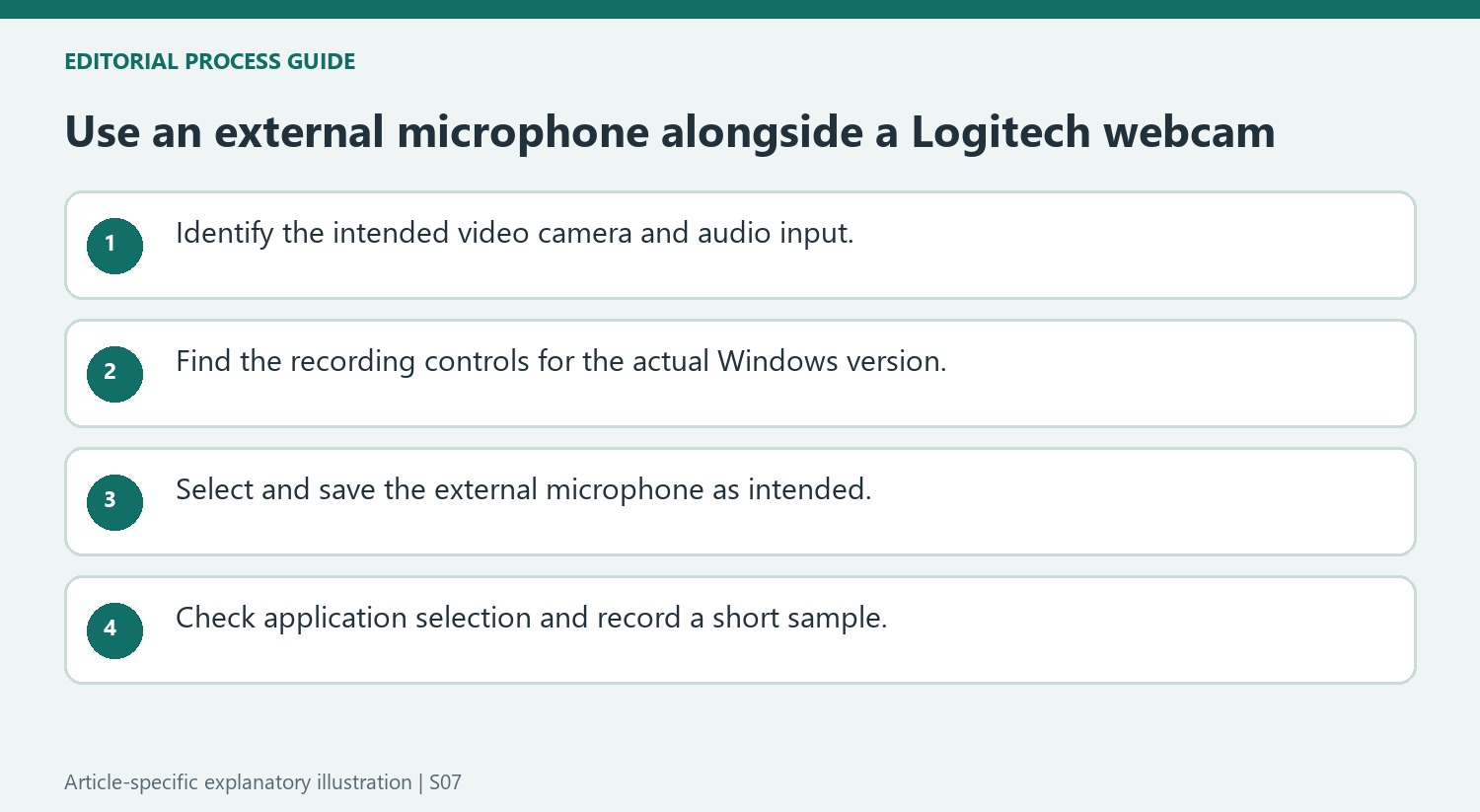
Logitech’s source describes Windows XP, Windows 7 and Windows Vista, so the menu names should be read as instructions for those older systems. In XP, the relevant choice is the Sound Recording drop-down on the Audio tab of Sounds and Audio Devices. In Windows 7 and Vista, the source instead uses the Recording tab of Sound and the Set Default action. Both routes concern the recording input. Changing a playback speaker elsewhere in the control panel would not complete the microphone selection described here, even if the computer can play sound normally.
Confirm the chosen input before making other camera changes
Choose the external microphone entry, save with OK, and then verify that the intended recording device is the one being evaluated. This preserves the separation between webcam video and microphone audio that motivates Logitech’s procedure. The article does not require disabling the webcam or removing its driver merely to choose another sound source. It also does not provide current Windows 11 settings or application-specific override instructions, so those details should come from the relevant modern guide. If a particular call still records the wrong input, compare its own microphone setting with the operating-system default before revisiting unrelated video controls.
Keep the article's legacy Windows scope attached to its menus
Logitech's note gives Control Panel procedures for Windows XP, Windows Vista, and Windows 7. That historical scope matters when a modern computer's settings do not look the same. The enduring point is selecting the external microphone as the intended recording default, not expecting every version of Windows to reproduce the old screens. Use current operating-system guidance for the actual machine when applying the idea today. A familiar webcam name in an input list does not establish that its built-in microphone is the desired choice. Identify the separate microphone first and then find the corresponding recording-input control in the applicable Windows version rather than selecting a device by position in a changing list.
Treat video selection and audio selection as independent choices
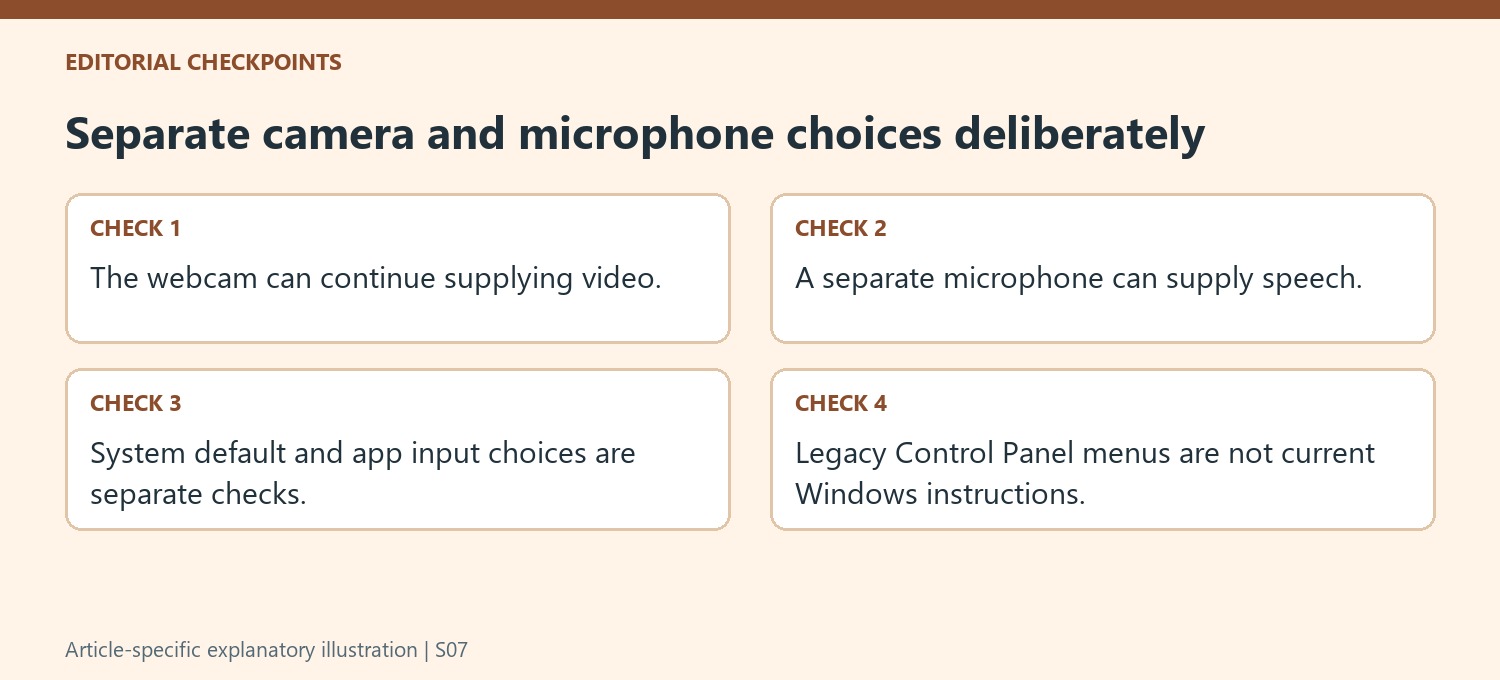
The source's purpose is to use a different microphone while retaining the Logitech webcam. That arrangement is possible because the camera image and the recording input can be selected separately. A visible webcam preview therefore does not prove its integrated microphone must supply the audio, and a working external microphone does not mean the camera image has changed. Make the intended combination explicit: the webcam supplies video while the selected microphone supplies speech. This is particularly useful on a desk with a headset or another external recording device already connected. Check both choices in any application that exposes its own selection controls instead of assuming that changing one side automatically changes the other.
Confirm the saved input choice with a practical test
The documented procedures finish by saving the new default. That matters because highlighting an external microphone without applying the selection can leave the previous arrangement unchanged. After completing the appropriate current procedure, record a short sample using the intended input or perform the application's audio test. Speak toward the external microphone in its normal position so the result is tied to the planned setup. If the sound still comes from another source, compare the system default with the program's own microphone choice rather than repeatedly changing the webcam's video settings. Keeping a clear device identity, saved selection, and test result provides a straightforward way to verify the mixed camera-and-microphone arrangement without confusing it with a failure of either product.
References
- Configuring a separate microphone to work with a Logitech Webcam. Logitech Support.
Using a Logitech webcam does not require recording through its built-in microphone. Logitech's guidance explains selecting a separate microphone as the operating system's default recording device, allowing the camera to continue handling video while the external device supplies sound.


Leave a Comment
Comments (0)