
Interpret the NoCamerasAreAttached error
Check the driver rather than only the cable
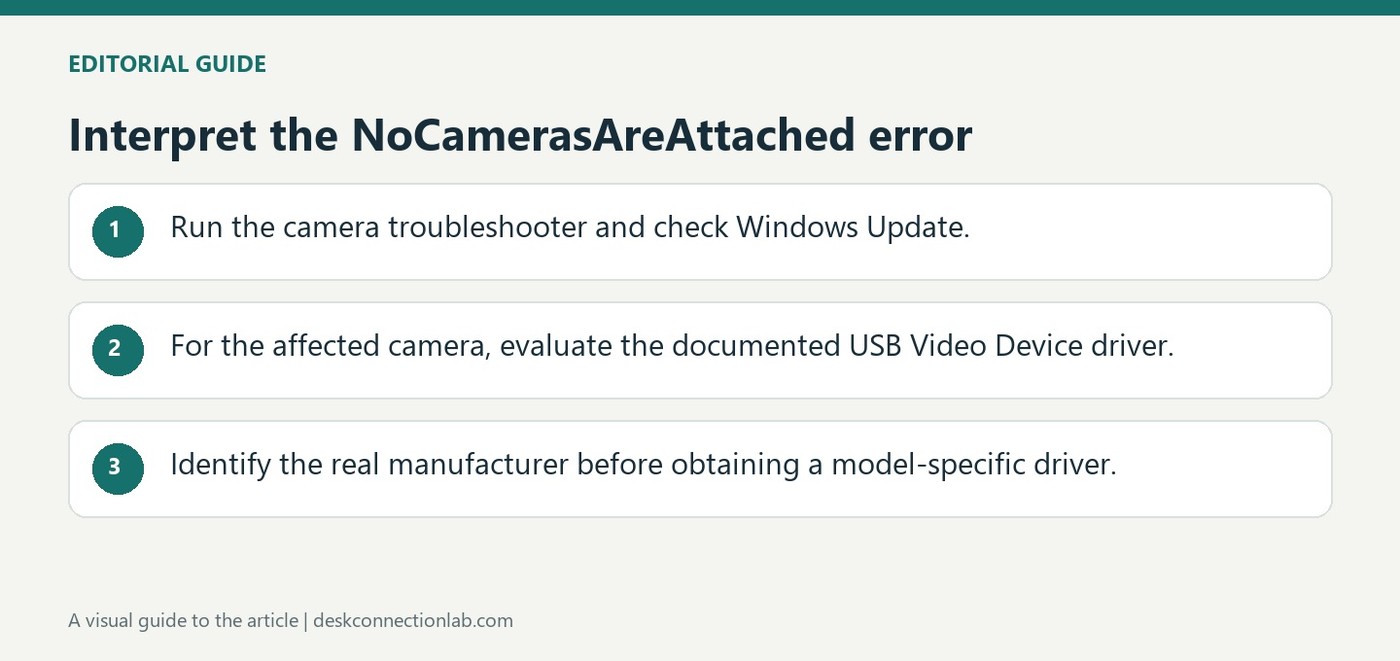
Microsoft links error 0xA00F4244 to Windows failing to recognize an internal or external camera, frequently because the driver is missing, outdated or damaged. Its recommended starting points include the Camera troubleshooter in Get Help and available Windows driver updates. An external webcam also needs a secure physical connection before software changes can be assessed.
Use supported replacement drivers
The guide describes selecting the generic USB Video Device driver where appropriate, or obtaining an updated package from the camera manufacturer's website. Match the manufacturer, model and Windows version before downloading. Changing a driver should address the identified detection issue, not become a random experiment with unrelated software; record which camera entry and driver are being changed so the result is understandable.
Follow the generic-driver selection deliberately
Microsoft’s alternative driver route starts in Device Manager, under Cameras, with the affected camera’s Properties. Open Driver, select Update driver, then Browse my computer for drivers and Let me pick from a list of available drivers on my computer. The documented choice is USB Video Device. Select Next and close the completion window once Windows reports the update. This sequence changes the driver assigned to that camera; it is not an instruction to install an arbitrary USB package or select another device that happens to appear nearby.
Identify the real manufacturer before searching for downloads
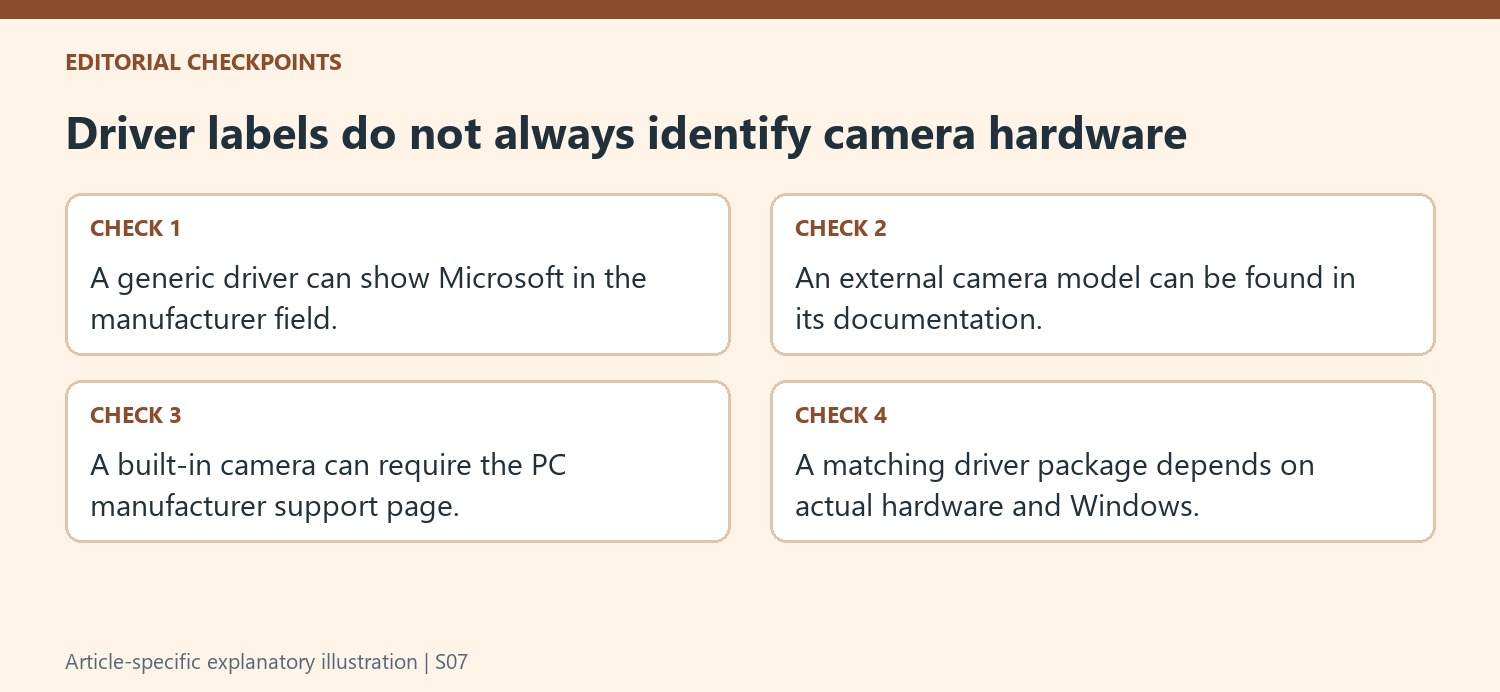
The General tab of the camera’s properties may show a manufacturer and model, but a Microsoft manufacturer entry can simply reflect the installed generic driver. Microsoft therefore points users to the camera’s own documentation, or to the computer manufacturer for an integrated camera. Use that identity when locating an official driver page and follow the supported manual-installation instructions. If Windows Update or the automated troubleshooter resolves detection first, an additional driver replacement is unnecessary. Check the Camera app again after the chosen intervention so the next decision reflects the new detection state rather than the original error alone.
Interpret the error as a recognition problem
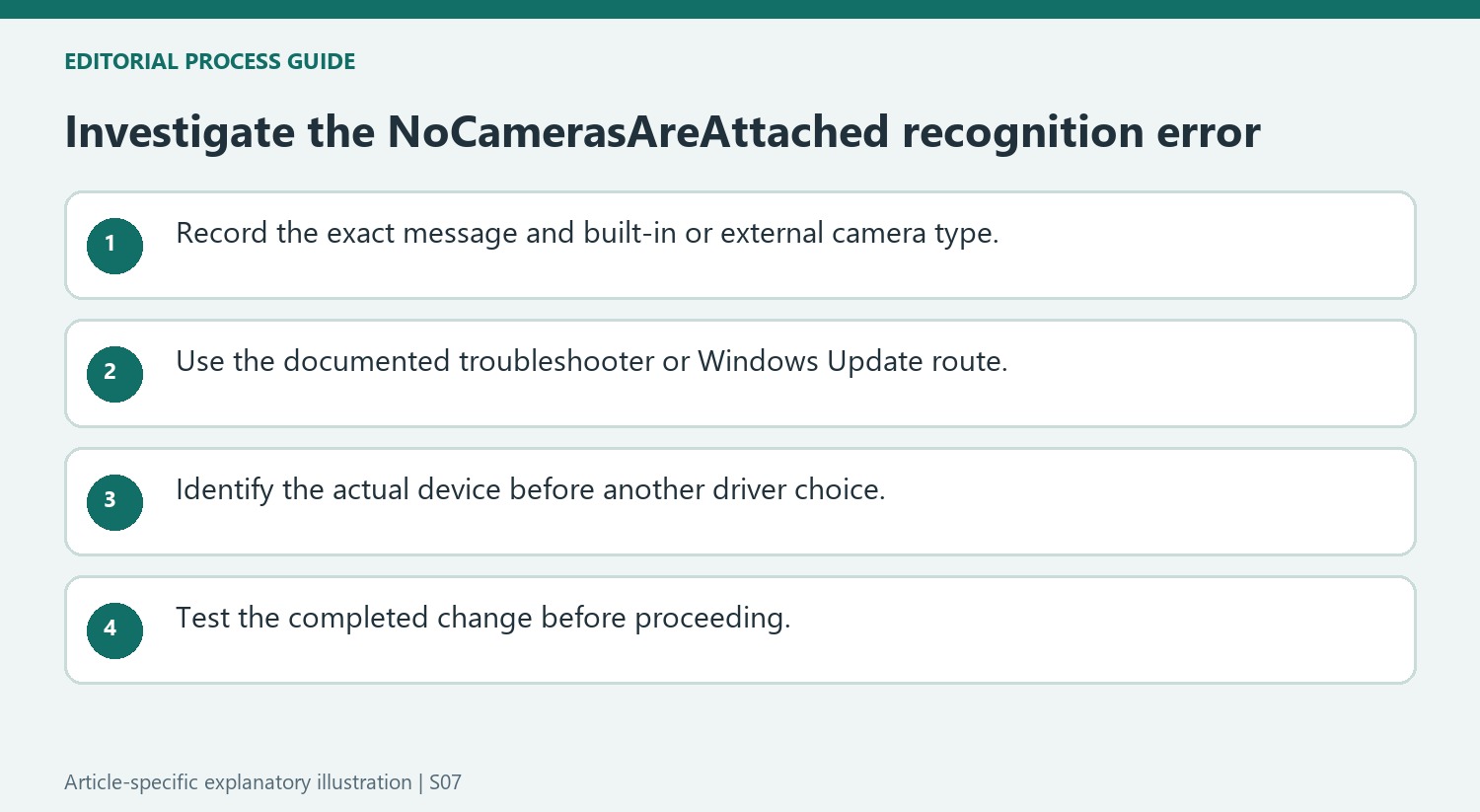
The NoCamerasAreAttached message means Windows is not recognizing a built-in or external camera in the described situation. It does not necessarily mean that an external cable is visibly absent; the source identifies missing, damaged, or outdated drivers as common explanations. That distinction helps keep the initial investigation focused. The automated Camera troubleshooter and Windows Update are documented ways to look for a supported correction. Note the exact error and the camera type before beginning. A built-in camera and a separately connected USB webcam can lead to different manufacturer documentation, even though Windows displays the same message. The name of the error is a starting clue rather than a complete physical diagnosis.
Choose a driver route appropriate to the identified device
Microsoft offers a Windows Update check and, if needed, a switch to an available USB Video Device driver through Device Manager. That selection is a deliberate driver change, not an instruction to download an arbitrary similarly named file from the internet. Read the device entry and follow the documented choice for the camera having the problem. Another supported route is a manufacturer-provided update. The useful question is which package matches the actual hardware and Windows environment, not simply which search result mentions a newer date. Test after the selected procedure is complete so the effect can be associated with that particular change rather than several overlapping installations.
Do not mistake a generic driver name for the camera maker
The support article notes that Device Manager may list Microsoft as manufacturer when a generic driver is in use. That does not necessarily identify the company that built the camera. For an external webcam, consult the supplied documentation or model markings; for a built-in camera, the computer manufacturer's documentation can be more useful. Collect the real model identity before choosing a support download. This prevents an uncertain software label from becoming the basis for an unrelated package installation. Keep the error text, device entry, computer model, and completed checks together when seeking further help. Those details make it easier to continue the recognition investigation without repeating the same update search or assuming that a driver display name establishes the physical hardware.
References
- Camera app shows error "0xA00F4244 NoCamerasAreAttached". support.microsoft.com.
Microsoft links error 0xA00F4244 to Windows failing to recognize an internal or external camera, frequently because the driver is missing, outdated or damaged. Its recommended starting points include the Camera troubleshooter in Get Help and available Windows driver updates. An external webcam also needs a secure physical connection before software changes can be assessed.


Leave a Comment
Comments (0)