
Check why Windows cannot use a webcam
Start with the camera itself
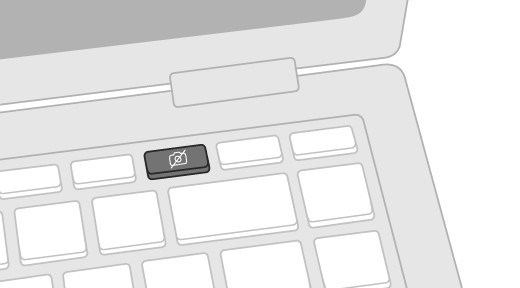
Microsoft recommends checking an external camera's USB cable and trying the device on another computer. Laptops may also have a hardware camera switch, a function-key control or a shutter that needs to be opened. A closed or disabled camera can resemble a software failure even though the cable and Windows application are functioning.
Then inspect access and updates
The Windows 11 Camera troubleshooter in Get Help can diagnose common issues. Privacy restrictions, antivirus software, missing drivers and the chosen application's settings are other possible causes in Microsoft's guide. Test with the Camera app to help separate a system-wide problem from one application's configuration, and follow the relevant driver or permission steps after the simpler physical checks.
Use the preview to identify the scope of failure
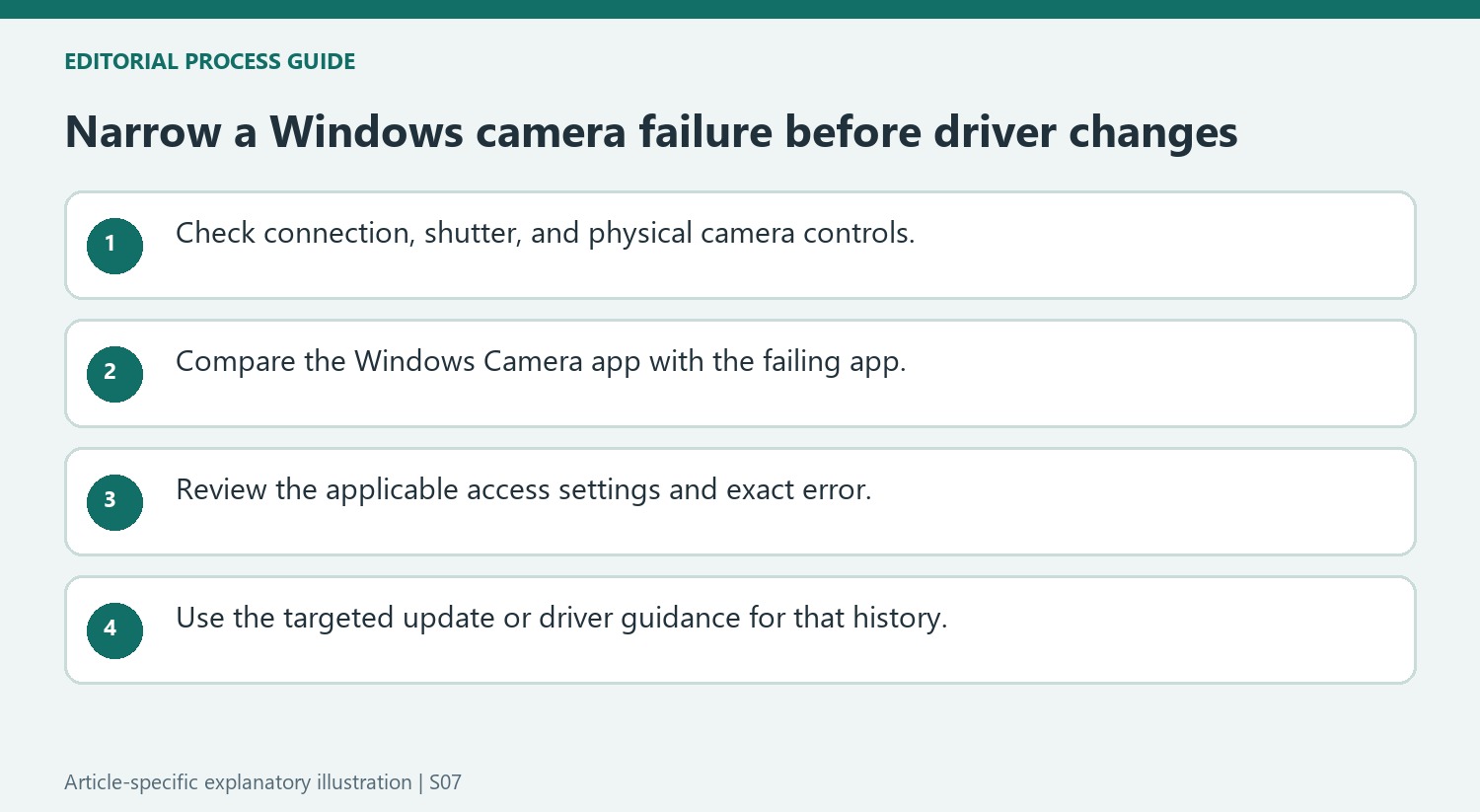
A working preview in the Windows Camera app is an important dividing point in Microsoft’s procedure. If that preview works while a meeting application fails, inspect the meeting app’s camera choice and access settings before treating the entire device as broken. If Camera fails too, continue the broader Windows checks. Windows Update can offer camera updates under Optional updates as well as the ordinary update list. After installing relevant updates, use Restart; waking a sleeping computer does not perform the same reset of the running system.
Match advanced steps to the symptom and Windows version
For an external camera, trying another USB port precedes deeper driver work in the source. Device Manager may list cameras under Cameras, Imaging devices, or Sound, video and game controllers; scanning for hardware changes can help locate a missing entry. If failure began after a driver update, the guide discusses rollback when that option is available. Basic camera mode is another troubleshooting option on Windows 11 version 24H2 and later, intended for difficulties involving manufacturer plug-ins or acceleration. These are conditional routes rather than reasons to apply every change to a camera that only needs an application permission.
Use another app to separate hardware from application behavior
Microsoft recommends testing with the Windows Camera app as part of the investigation. If an external camera produces a preview there but fails in one conferencing program, the result redirects attention toward that program's selected camera and access settings. It does not prove that every function is perfect, but it is useful evidence that the hardware can supply an image. A camera that is absent across applications presents a different starting point. Check the external connection, another suitable port, or a comparison device as applicable. Also inspect any physical camera switch, keyboard control, or shutter: the support page notes that these can block operation or change how the camera appears to Windows.
Match a driver action to the history of the failure
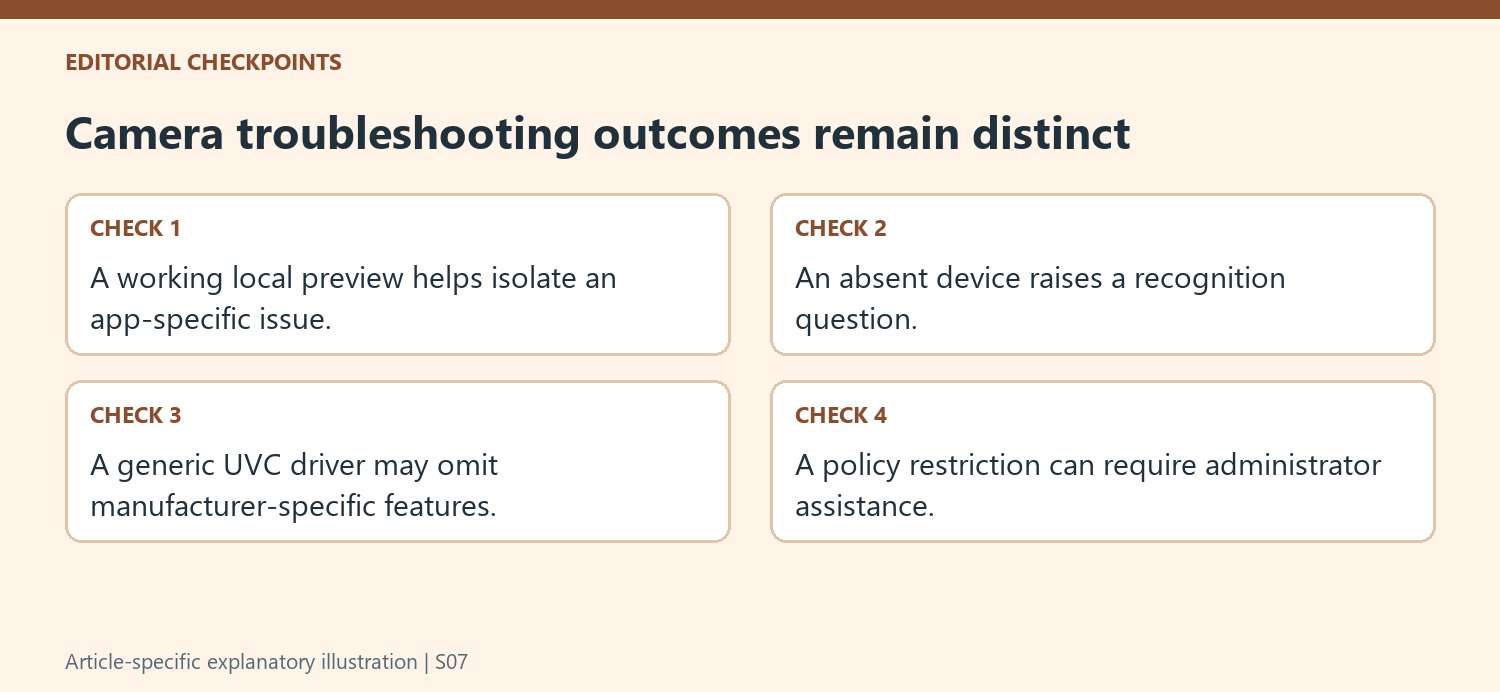
The guidance includes updates, rollback after a recent change, and reinstalling the camera driver as distinct options. A camera that stopped immediately after an update has a different history from one that has never been detected. Preserve that timing before selecting a procedure. Microsoft also describes the generic UVC driver for compatible USB cameras, with an explicit qualification that manufacturer-specific features such as some Windows Hello support may be lost. Restoring a basic image and retaining every specialized feature are therefore separate outcomes. Use the current instructions for the exact camera and system, complete any required restart, and check the result before moving to another driver change.
Read error codes as clues with different next checks
The source distinguishes detection errors, access denial, resource problems, a camera already in use, and a component needing restart. These should not all lead to the same response. Save the exact message and compare it with the matching guidance instead of reporting only that the camera is broken. Permission controls also differ between supported Store apps and desktop applications, while policy restrictions can require administrator help. For eligible Windows versions, Basic camera mode is another specifically scoped option. Work from the observed symptom and installed version. A controlled sequence of connection, physical-control, app, permission, update, and targeted driver checks gives the result a clearer explanation than changing several unrelated settings together.
References
- Camera doesn't work in Windows. support.microsoft.com.
Microsoft recommends checking an external camera's USB cable and trying the device on another computer. Laptops may also have a hardware camera switch, a function-key control or a shutter that needs to be opened. A closed or disabled camera can resemble a software failure even though the cable and Windows application are functioning.


Leave a Comment
Comments (0)