
Resolve a silent microphone before a call
Check permission and hardware mute
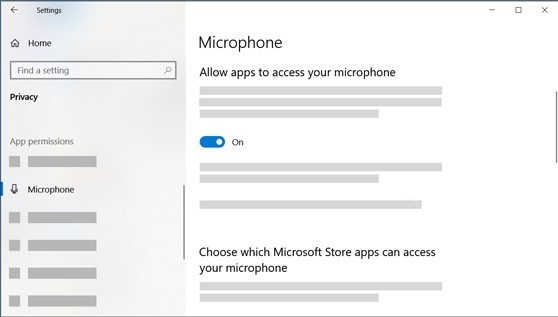
Microsoft's microphone troubleshooting explains that Windows privacy settings can block recording even when the device is connected. Enable microphone access and the appropriate app permissions, including the separate desktop-app control where needed. If a headset has a mute button, check that it is not active before changing drivers or buying another cable.
Select and test the recording device
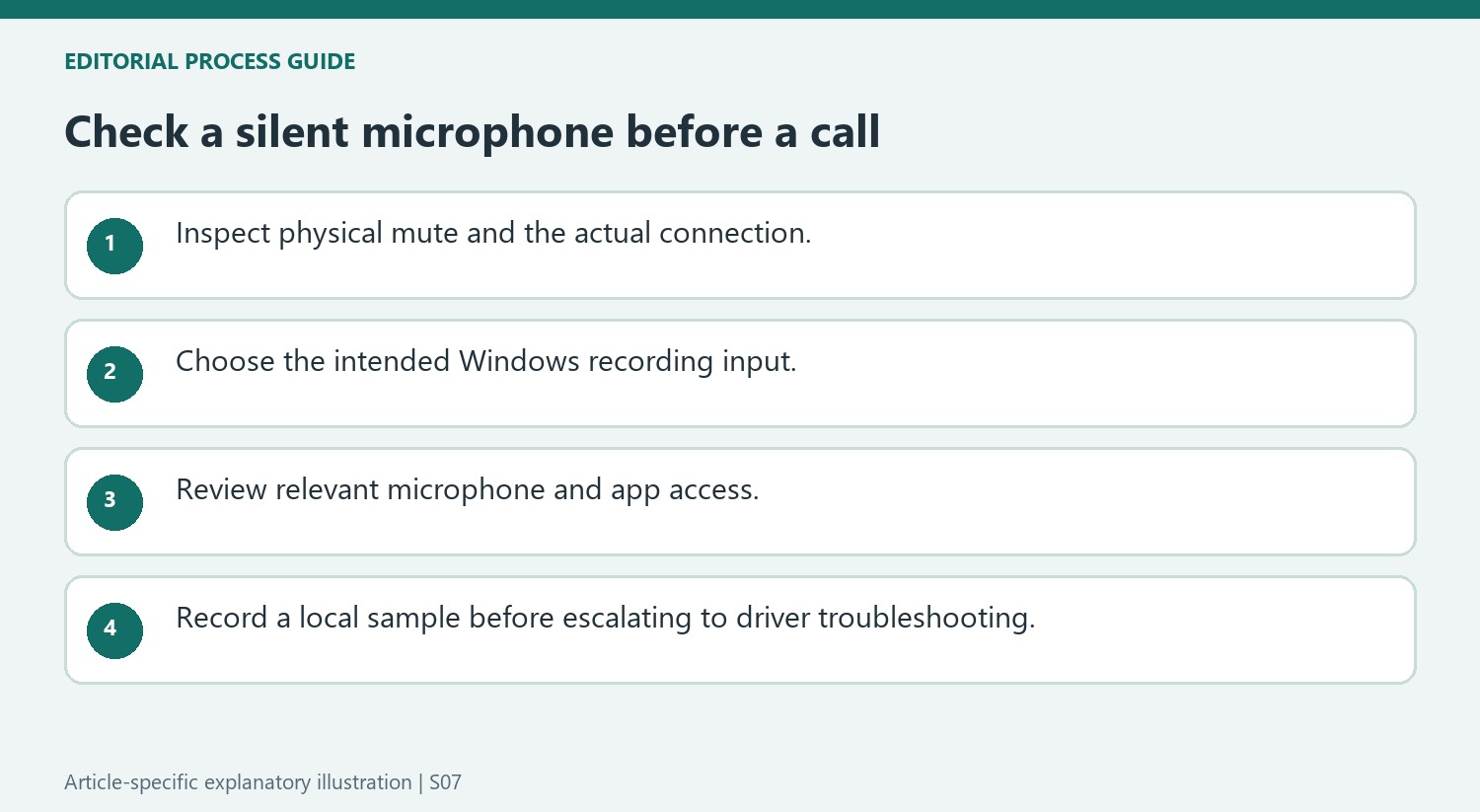
Under System, Sound, choose the intended device for speaking or recording. Use the microphone test to record a sample and hear the result. A webcam with an integrated microphone may also require the relevant camera permissions. These checks separate connection failure, input selection and software access, which can produce similar symptoms in a meeting application but need different fixes.
Distinguish a quiet signal from an absent device
A microphone that records faint speech requires a different investigation from one missing from the Input list. Microsoft recommends checking its position and increasing Input volume when the signal is too quiet. Use the recorded sample to evaluate the change rather than relying only on what another participant reports. For wireless equipment, confirm both pairing and an active connection. For a headset, inspect its own mute control as well as the software state so a hardware setting does not undermine the test.
Escalate missing-device problems through Windows tools
When basic connection, permission and input checks fail, the article offers the recording troubleshooter and driver investigation. In Windows 11, Sound settings includes troubleshooting choices under Advanced. Device Manager is a later step when Windows does not detect the microphone: identify the relevant audio device, follow the documented uninstall procedure and restart so Windows can attempt reinstallation. Scan for hardware changes or check for a driver update if it remains absent. Use the instructions for the installed Windows version, since the settings labels and troubleshooting routes differ between Windows 10 and Windows 11.
Separate physical mute, input choice, and app access
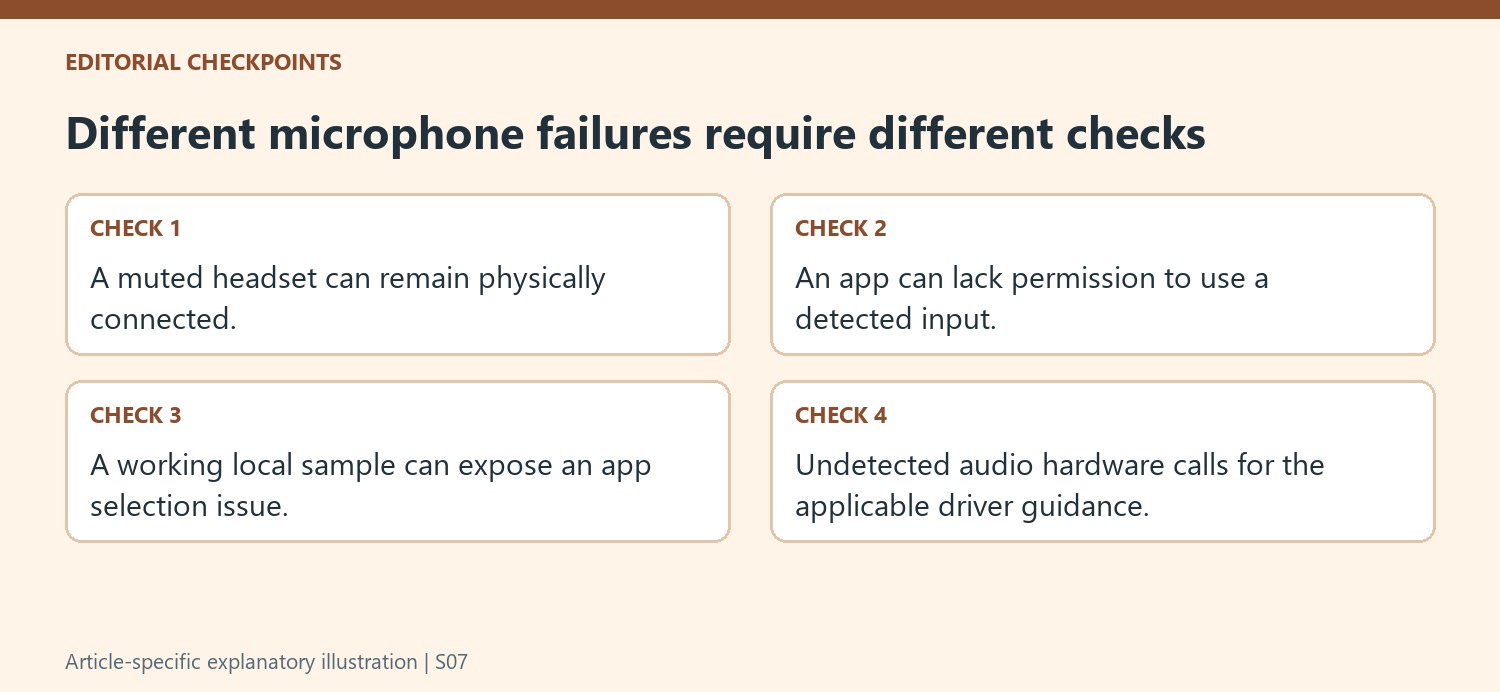
A headset can be connected correctly while its own mute control prevents speech from reaching the computer. Windows can also detect a microphone while an app lacks permission to use it, or while a different input is selected for recording. Microsoft's guidance treats these as separate checks. Start with the headset's mute state and physical or Bluetooth connection, then confirm the intended recording device in Sound settings. Review microphone access for the relevant app category after that. This avoids interpreting every silent call as a broken microphone. Each check has an observable question: is the accessory connected, is that input selected, and is the intended software allowed to use it?
Use a Windows recording test before changing drivers
The support article provides a local sample test through the selected microphone's properties. Speak normally, stop the test, and play the result, adjusting the input volume or microphone position when needed. A clear local sample helps distinguish a functioning microphone path from an application-specific problem. The page also directs users to the sound troubleshooter as another diagnostic route. Driver reinstallation appears as a later response when earlier checks fail and Windows does not detect the audio hardware. That is a different situation from a detected microphone that records clearly but is not chosen in a call app. Preserve that distinction before making a broader change to the audio-driver setup.
Check desktop-app permission as its own category
Microsoft distinguishes the individual Microsoft Store app controls from the broader desktop-app microphone setting. A desktop program missing from the individual app list is therefore not necessarily missing from the computer or exempt from the access question. The source also notes that a webcam containing a microphone may involve camera permission for the intended application. Use the settings appropriate to the installed Windows version, since the page documents different paths. After changing access, return to the intended application and confirm its microphone selection rather than assuming it automatically switches from another input. A short test call or recording under the actual app conditions completes the check while retaining the local Windows sample as a useful comparison.
References
- Fix microphone problems. support.microsoft.com.
Microsoft's microphone troubleshooting explains that Windows privacy settings can block recording even when the device is connected. Enable microphone access and the appropriate app permissions, including the separate desktop-app control where needed. If a headset has a mute button, check that it is not active before changing drivers or buying another cable.


Leave a Comment
Comments (0)