
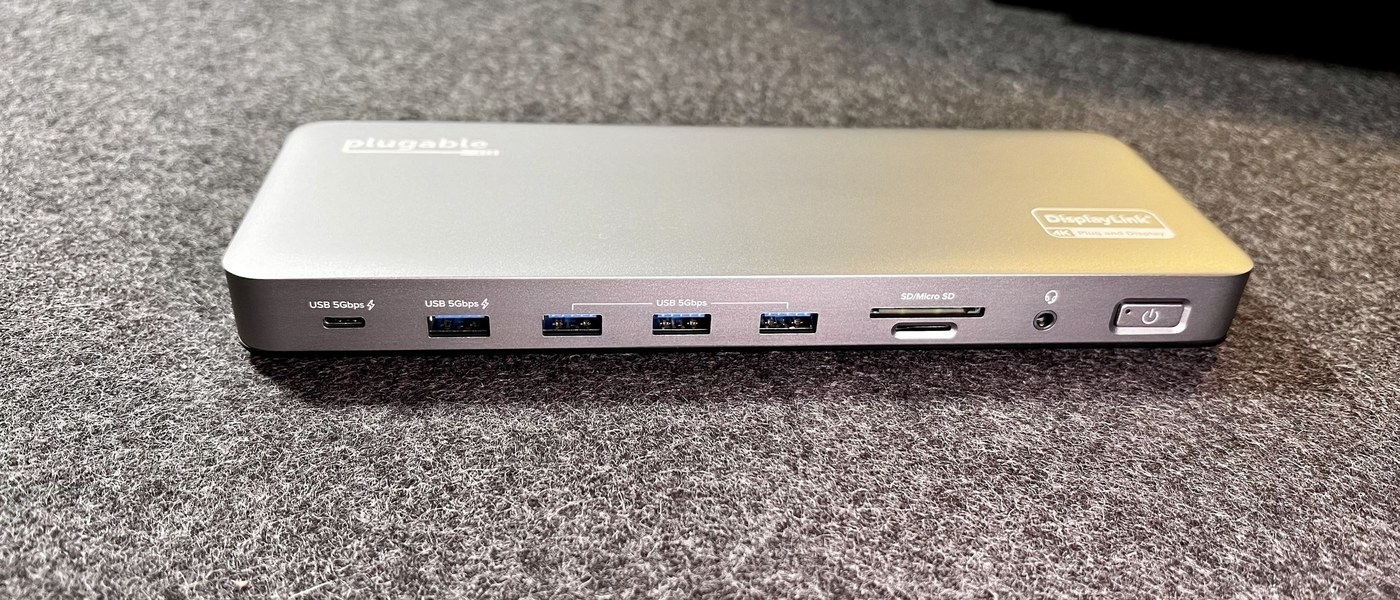
Recover a dock-connected monitor: Update the correct Surface dock firmware
Recover a dock-connected monitor
If a screen works directly but not through the dock, focus the next checks on the dock's power, video port and compatibility. Test one display before adding the second. Updates may help, but they cannot create a display mode that the host or dock does not support.
Select instructions for the actual dock
Microsoft's update page covers Surface Thunderbolt 4 Dock, Surface Dock 2 and the original Surface Dock. The available update method differs between models. With a supported dock connected, the Surface app can show relevant firmware information and update status; the original dock also has a specific firmware update tool.
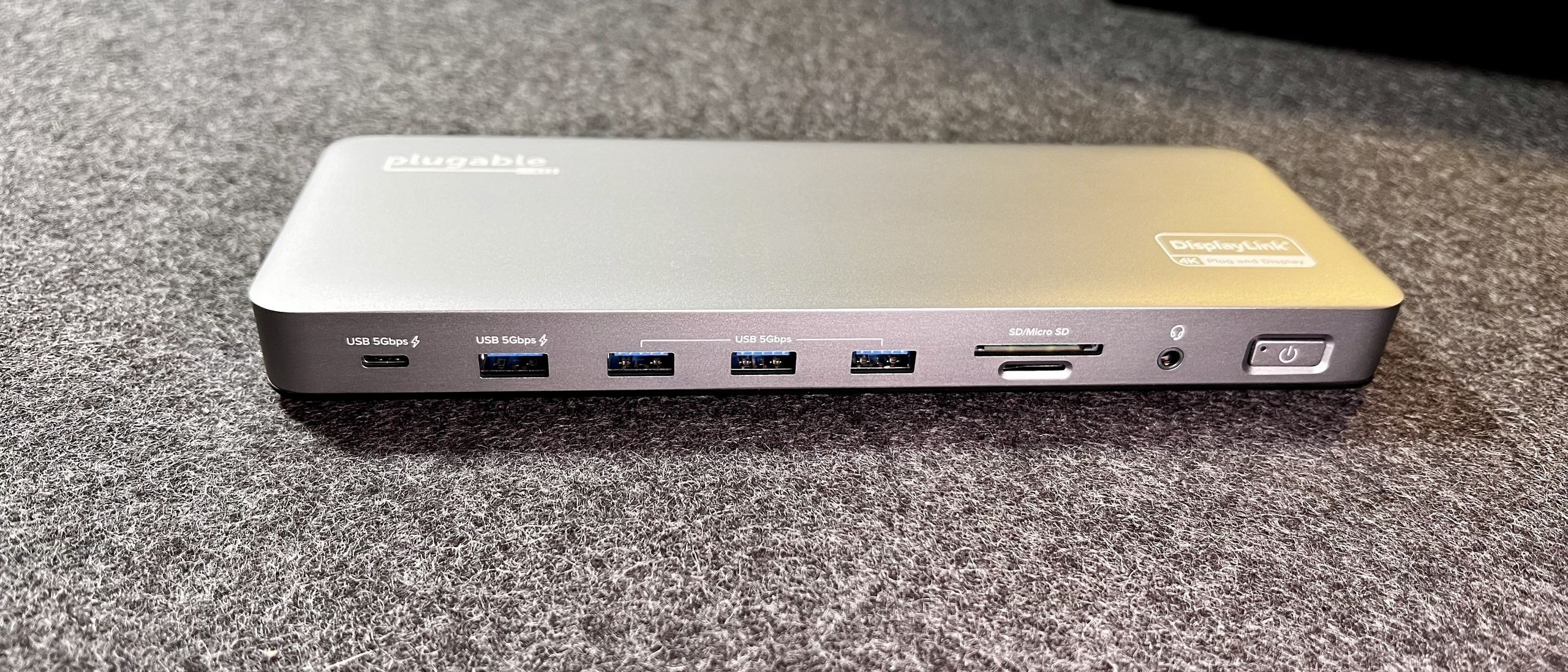
Complete the reconnection step
Downloadable driver and firmware packages must match the identified dock. Microsoft notes restrictions for computers running Windows in S mode, so an installer is not automatically suitable for every system. After installing a dock update, disconnect the Surface from the dock and reconnect it. If the update does not complete, the guide suggests trying another supported, updated Surface rather than repeatedly applying unrelated packages.
Microsoft's update page covers Surface Thunderbolt 4 Dock, Surface Dock 2 and the original Surface Dock. If a screen works directly but not through the dock, focus the next checks on the dock's power, video port and compatibility.


Leave a Comment
Comments (0)