
Find a monitor Windows does not detect: Restore a Surface dock connection methodically
Find a monitor Windows does not detect
A missing monitor can result from a cable, input setting, unsupported connection or software state. Test one screen through the shortest supported path before rebuilding a multi-monitor setup. This separates failure to detect a display from a desktop that is detected but configured incorrectly.
Begin with power and updates
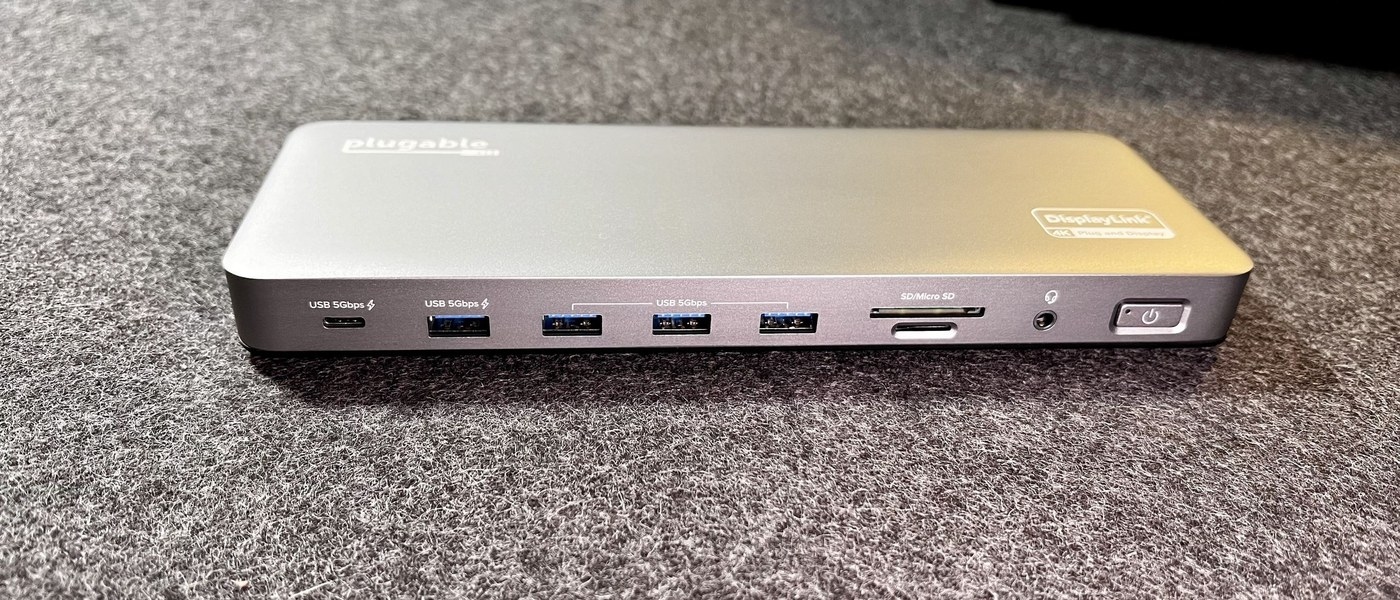
Microsoft recommends checking Surface updates and the connections between the computer, dock and peripherals. A dock power reset involves disconnecting its supply, waiting about five seconds and reconnecting it. Check that the original power supply is in use; a dock with several attached accessories may behave differently when power is insufficient.
Follow the branch for the symptom
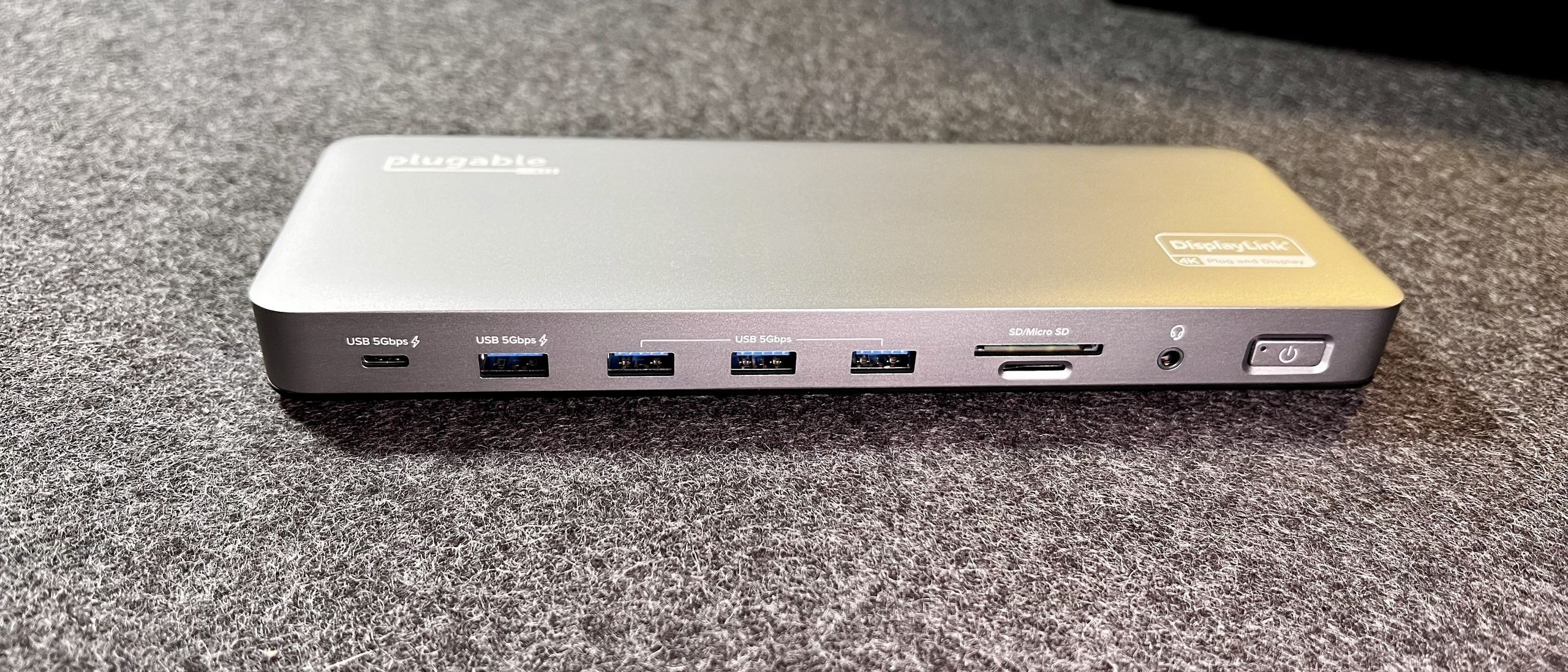
Display failure, charging trouble, audio problems and network faults need different follow-up checks. Disconnect accessories to simplify a charging test, and verify display cables and inputs when screens remain blank. Testing a device directly on the computer helps isolate the dock. Reconnect one accessory at a time after a successful reset so a recurring problem can be associated with a specific connection.
Microsoft recommends checking Surface updates and the connections between the computer, dock and peripherals. A missing monitor can result from a cable, input setting, unsupported connection or software state.


Leave a Comment
Comments (0)