
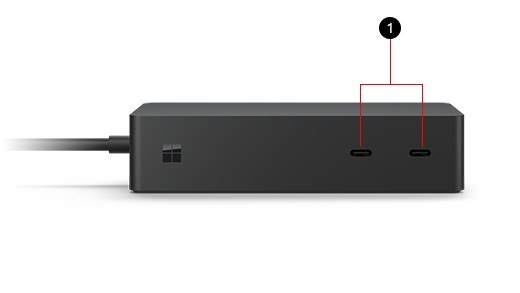
Build a two-monitor laptop setup: Use the correct ports on Surface Dock 2
Build a two-monitor laptop setup
For two independent monitors, first establish that the laptop supports the intended display count. Then check the dock's host compatibility and video connections. Once both screens are detected, arrange them in Windows and choose Extend so they add workspace rather than merely repeating the same picture.
Connect displays to display-capable sockets
Surface Dock 2 uses Surface Connect to attach to a compatible computer and provides USB-A, USB-C, Ethernet and audio connections. Microsoft's diagram distinguishes the front USB-C accessory ports from the rear USB-C display connections. Plugging a monitor into a connector intended for another role can create a misleading detection problem.
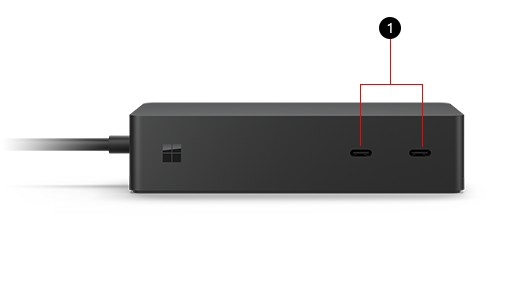
Plan the power and display load
The dock's 199W supply supports up to 120W of host charging, rather than passing its entire rating to the laptop. Connect the supply, network cable, accessories and displays according to the setup guide, then attach the host. Check the compatibility and display tables for the computer in use, especially when attempting two high-resolution monitors while also charging the laptop.
Surface Dock 2 uses Surface Connect to attach to a compatible computer and provides USB-A, USB-C, Ethernet and audio connections. For two independent monitors, first establish that the laptop supports the intended display count.


Leave a Comment
Comments (0)