
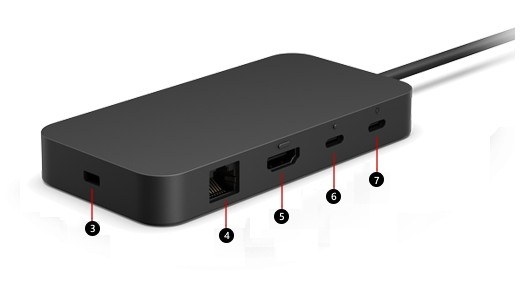
Build a two-monitor laptop setup: Understand Surface USB4 Dock connections
Build a two-monitor laptop setup
For two independent monitors, first establish that the laptop supports the intended display count. Then check the dock's host compatibility and video connections. Once both screens are detected, arrange them in Windows and choose Extend so they add workspace rather than merely repeating the same picture.
Keep the power input separate
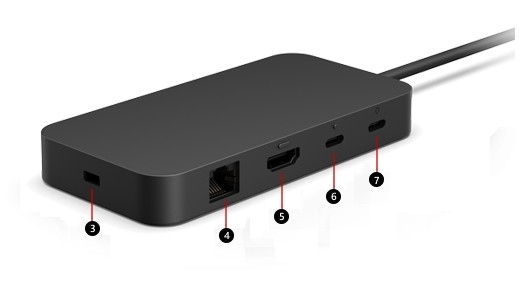
Microsoft's USB4 Dock guide distinguishes its USB-C power input from data and display ports. The power input accepts the supply; it is not an additional monitor connection. Other ports provide USB accessories, USB4 video, HDMI and Ethernet, with the supported arrangement depending on the connected computer.
Check the host charging allowance
The included 100W supply provides up to 65W of host charging. Using a different or insufficient supply can limit operation, so compare power delivered to the laptop rather than just the adapter's headline rating. The guide describes a dual-4K arrangement using USB-C and HDMI, but the compatibility table and the host's capabilities still determine whether that arrangement is available.
Microsoft's USB4 Dock guide distinguishes its USB-C power input from data and display ports. For two independent monitors, first establish that the laptop supports the intended display count.


Leave a Comment
Comments (0)