
Build a two-monitor laptop setup: Isolate a missing external monitor
Build a two-monitor laptop setup
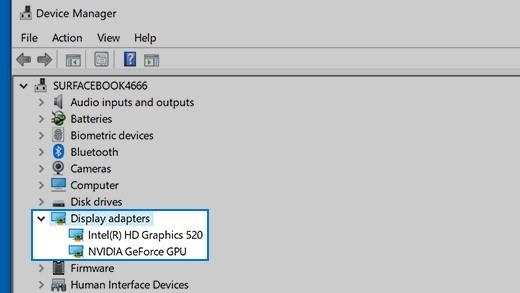
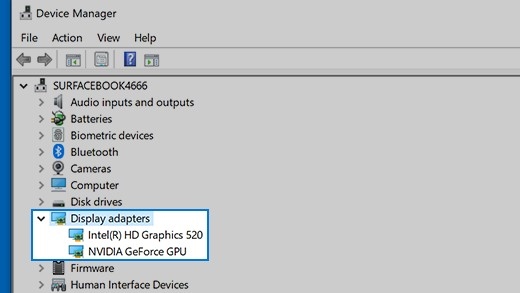
For two independent monitors, first establish that the laptop supports the intended display count. Then check the dock's host compatibility and video connections. Once both screens are detected, arrange them in Windows and choose Extend so they add workspace rather than merely repeating the same picture.
Reduce the connection to one display
Microsoft advises checking Windows updates and the Extend option, then testing the hardware path. Disconnect docks and other accessories, secure the video cable and try a replacement cable or another computer. If a single display works directly but fails through an adapter, the added connection becomes the next item to investigate.
Distinguish expansion from duplication
An ordinary display splitter duplicates one signal; it does not create independent extended desktops. Supporting more screens depends on the graphics hardware and a compatible dock or adapter. For a previously working setup, Microsoft also describes restarting the computer, resetting the graphics driver with Windows plus Ctrl plus Shift plus B, and examining driver changes when failure follows an update.
Microsoft advises checking Windows updates and the Extend option, then testing the hardware path. For two independent monitors, first establish that the laptop supports the intended display count.


Leave a Comment
Comments (0)