
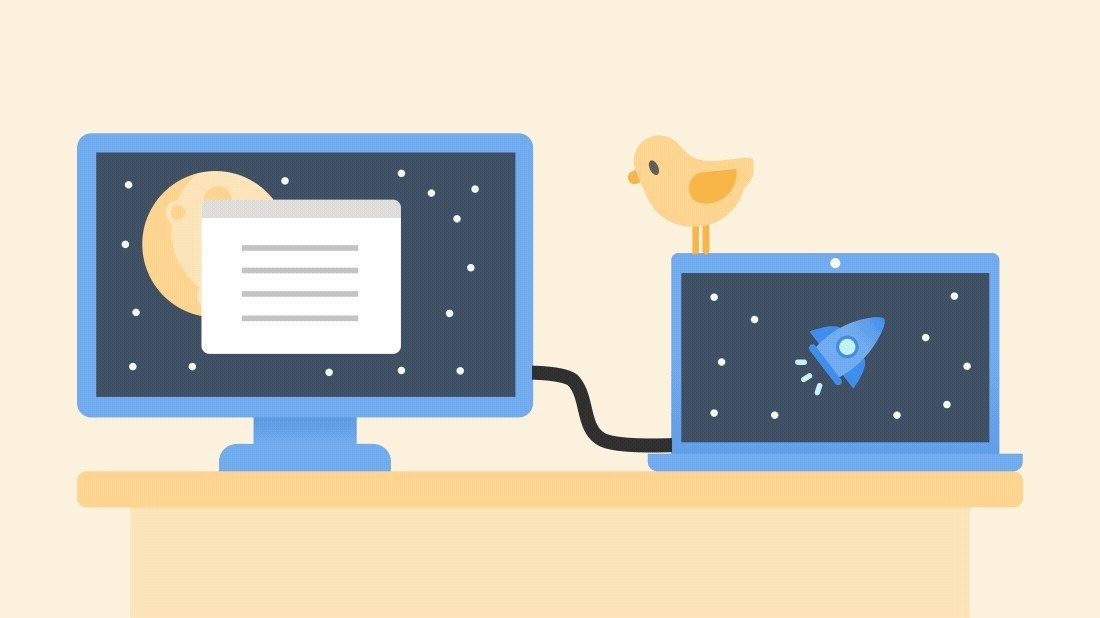
Build a two-monitor laptop setup: Arrange two screens in Windows
Build a two-monitor laptop setup
For two independent monitors, first establish that the laptop supports the intended display count. Then check the dock's host compatibility and video connections. Once both screens are detected, arrange them in Windows and choose Extend so they add workspace rather than merely repeating the same picture.
Confirm detection before arranging displays
After checking the cables and installing available Windows updates, open Settings, System, Display. Identify displays so the numbers on screen can be matched to the actual monitors. If a connected display is missing, use Detect. These controls help separate a monitor that Windows cannot see from one that is simply arranged incorrectly.

Choose the working layout
Drag the display rectangles to match their positions on the desk. Windows plus P offers Duplicate, Extend and other projection choices; Extend provides the additional desktop space most two-monitor workflows need. Arrange the screens before judging pointer movement between them, and check the selected display when changing scale, resolution or orientation so the adjustment affects the intended monitor.
After checking the cables and installing available Windows updates, open Settings, System, Display. For two independent monitors, first establish that the laptop supports the intended display count.


Leave a Comment
Comments (0)