
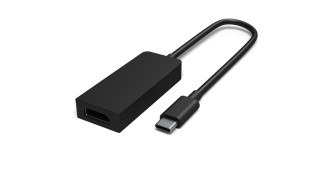
HDMI or DisplayPort for a monitor: Select a Surface USB-C display adapter
HDMI or DisplayPort for a monitor
Choose a monitor connection by the video mode supported at both ends. HDMI and DisplayPort names alone do not settle resolution, refresh rate or adapter compatibility. Check the computer's output and the screen's input together, then choose the simplest supported cable path.
Match the adapter to the monitor input
Microsoft documents USB-C adapters for HDMI, DisplayPort and VGA. Choose the version that matches the screen's input instead of adding unnecessary conversion steps. Connect the display cable to the adapter and the adapter to the Surface, then use Windows plus P to select the projection mode.
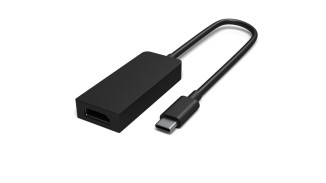
Use the adapter's own specification
The guide gives 4K at 60Hz examples for supported HDMI and DisplayPort adapters and a lower maximum for VGA. Those figures belong to the documented products and require a compatible host and display. They should not be treated as a guarantee for every adapter with the same connector. If the screen remains blank, confirm its selected input and the computer port's video capability.
Microsoft documents USB-C adapters for HDMI, DisplayPort and VGA. Choose a monitor connection by the video mode supported at both ends.


Leave a Comment
Comments (0)