
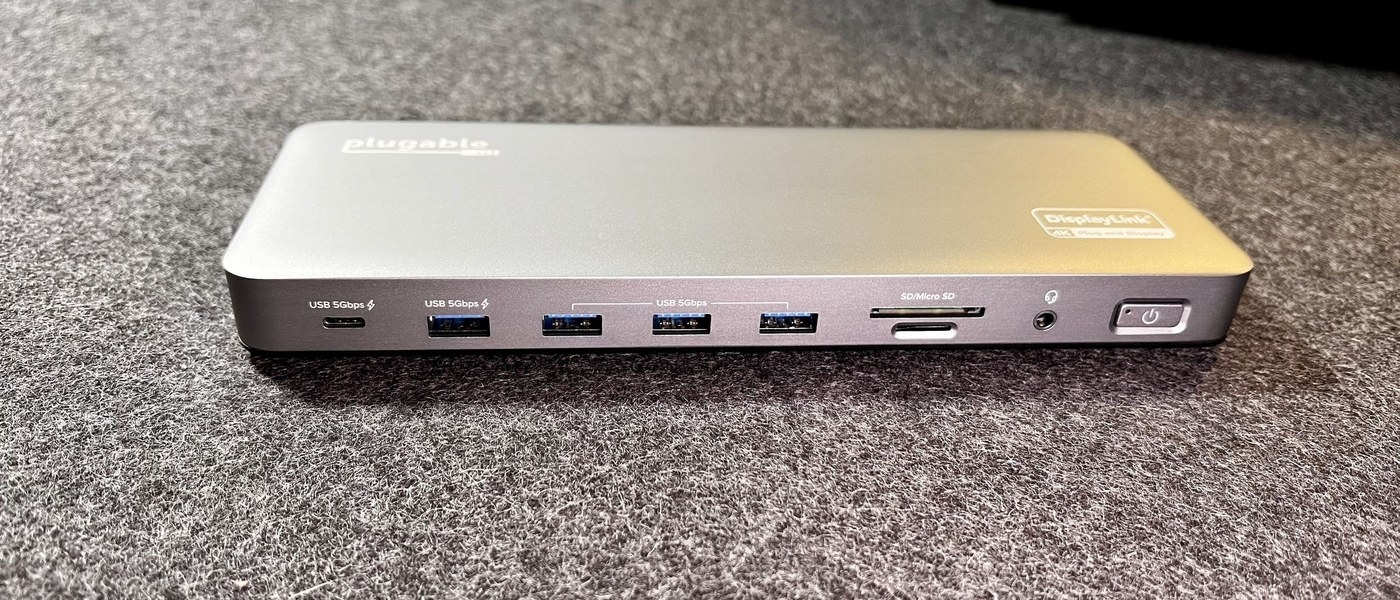
HDMI or DisplayPort for a monitor: Match the Surface port to the screen
HDMI or DisplayPort for a monitor
Choose a monitor connection by the video mode supported at both ends. HDMI and DisplayPort names alone do not settle resolution, refresh rate or adapter compatibility. Check the computer's output and the screen's input together, then choose the simplest supported cable path.
Start with the physical connection
Microsoft's Surface display guide begins with the connectors available on the computer and monitor. A matching cable is the simplest route when both ends provide the same interface. USB-C, HDMI, DisplayPort, Mini DisplayPort, DVI and VGA require different cables or adapters; the connector on one device cannot establish what the other device supports.
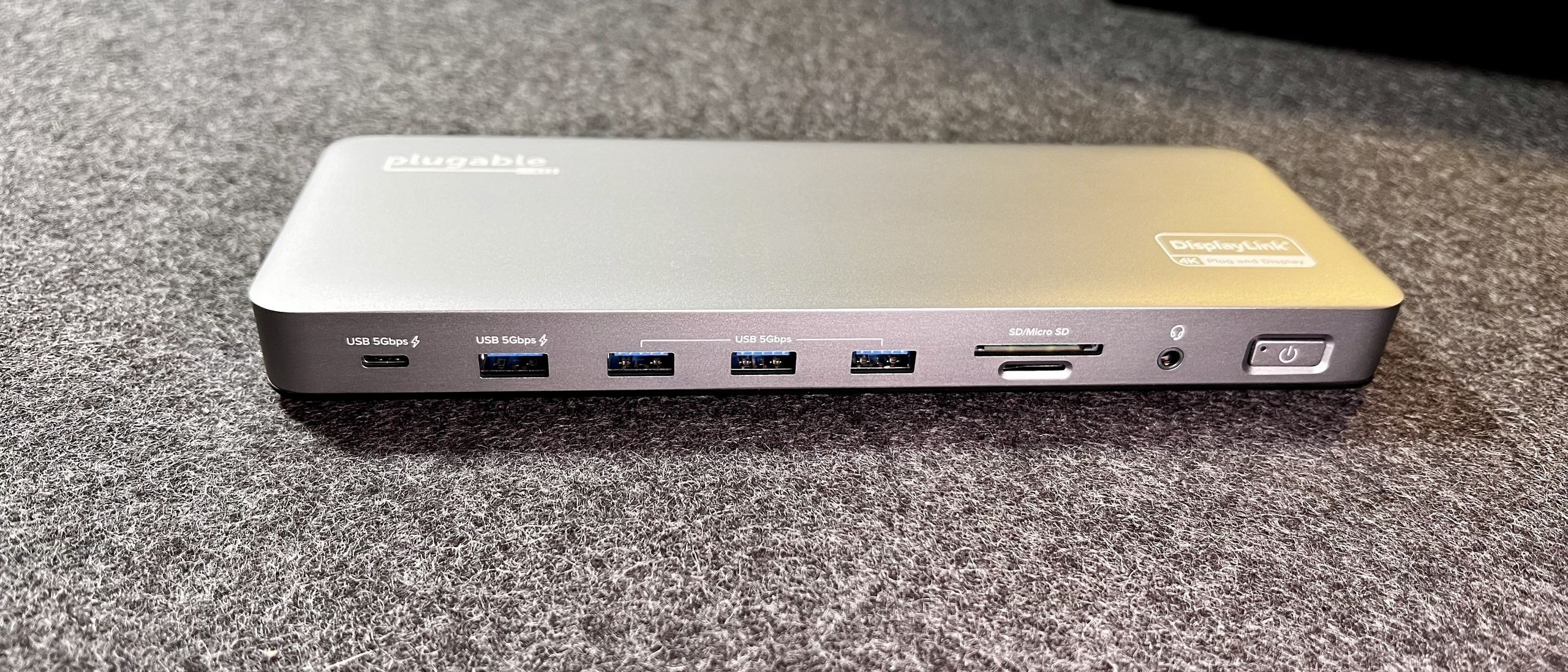
Check the complete video path
HDMI and DisplayPort can carry video and sound, while older analog connections have different limits. Microsoft provides model-specific cable recommendations rather than one universal prescription. Check the Surface model, display input, adapter specifications and intended resolution together, then choose Duplicate or Extend with Windows plus P after connecting the equipment.
Microsoft's Surface display guide begins with the connectors available on the computer and monitor. Choose a monitor connection by the video mode supported at both ends.


Leave a Comment
Comments (0)